
Appearance
Passing Variables with Triggers
Most variables are defined in triggers. These variables become part of the workflow instance's level of variables.
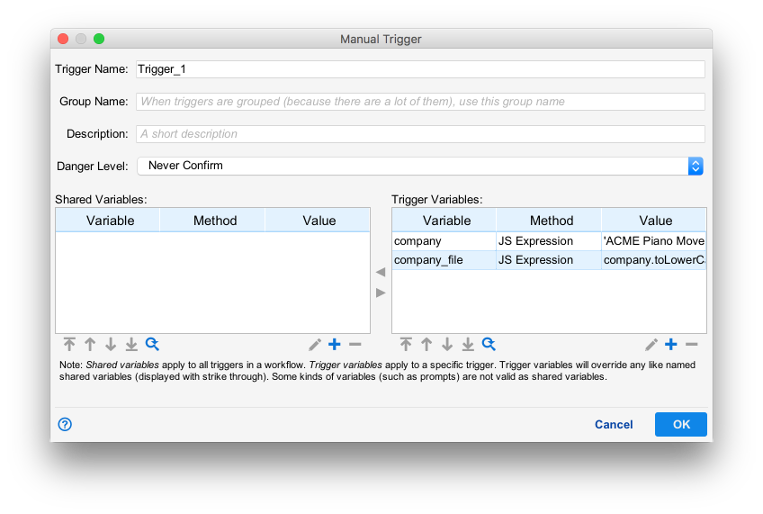
The example above shows the configuration window for a manual trigger. The dialog contains two sections for defining the two types of trigger-defined variables.
- Trigger Variables are created only when the trigger in which they are defined runs.
- Shared Variables are created whenever any trigger in the workflow runs.
When a workflow executes, shared variables are defined before trigger variables. When the same variable exists in both the shared and trigger variable section, the trigger variable will override the shared variable. This property allows shared variables to act as default values.
Editing Variables
Variables are added, edited and removed by using the “+”, “pencil”, and “-” buttons. Double clicking an existing variable will also open the variable editor dialog.
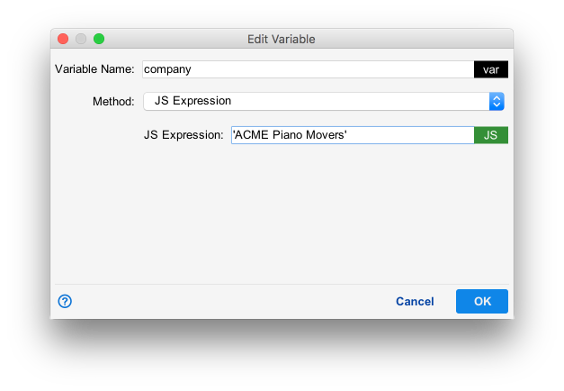
In this example, the Javascript variable company is assigned the value 'ACME Piano Movers'.
Enclosing the value of company in single quotes creates a Javascript string, which acts as it would in any Javascript program. For more information, see String.
Variable Name
The variable name is the name of the variable to set. For more information on what constitutes a valid variable name, see Introduction to Variables.
Method
The method describes the kind of variable to be defined. By default, the method is JS Expression, meaning that the value must be a valid Javascript expression. For more variable methods, see Variable Methods.
Value
The value of the variable sets the variable's initial content when it is created. The value of the variable must be valid to its method.
Using Trigger Variables in Other Trigger Variables
Triggers are processed top to bottom in the variables panel and once a variable is created, it can be used to define other variables.
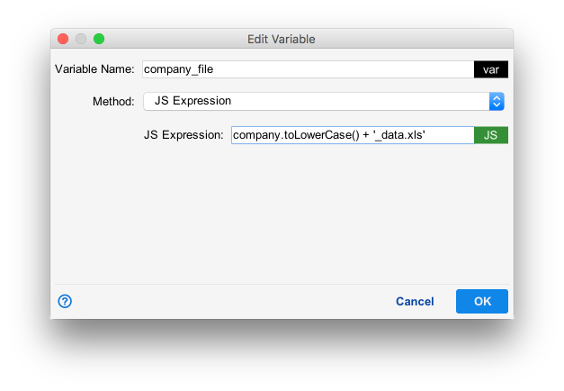
In the example above, the variable company_file uses the variable company to set its value to that of company converted to lowercase with '_data.xls' appended. Since the value of company is 'ACME Piano Movers', the value of company_file is set to 'acme piano movers_data.xls'.