
Appearance
Connection Security
Situate Agents communicate using the Secure Socket Layer, or SSL. To ensure the security and validity of connections between Situate agents, Situate uses a key-based authentication system, as detailed here.
Public and Private Keys
When a Situate agent is started for the first time, it generates a certificate and a private key.
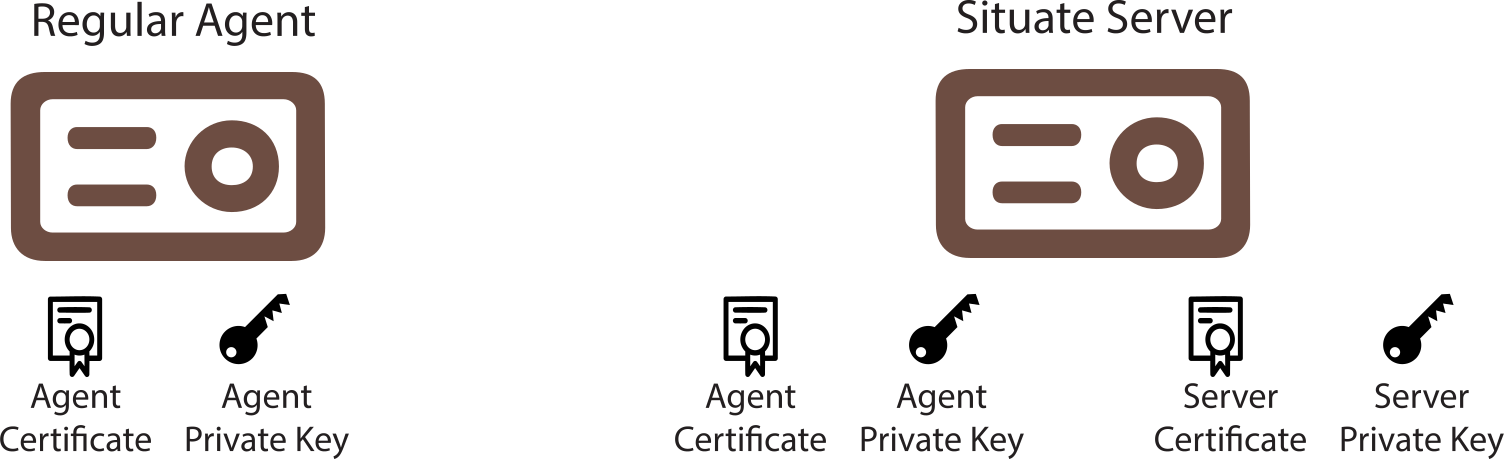
Because each Situate server is both an agent and a server, it generates a server certificate and key as well as an agent certificate and key
Connecting with Keys
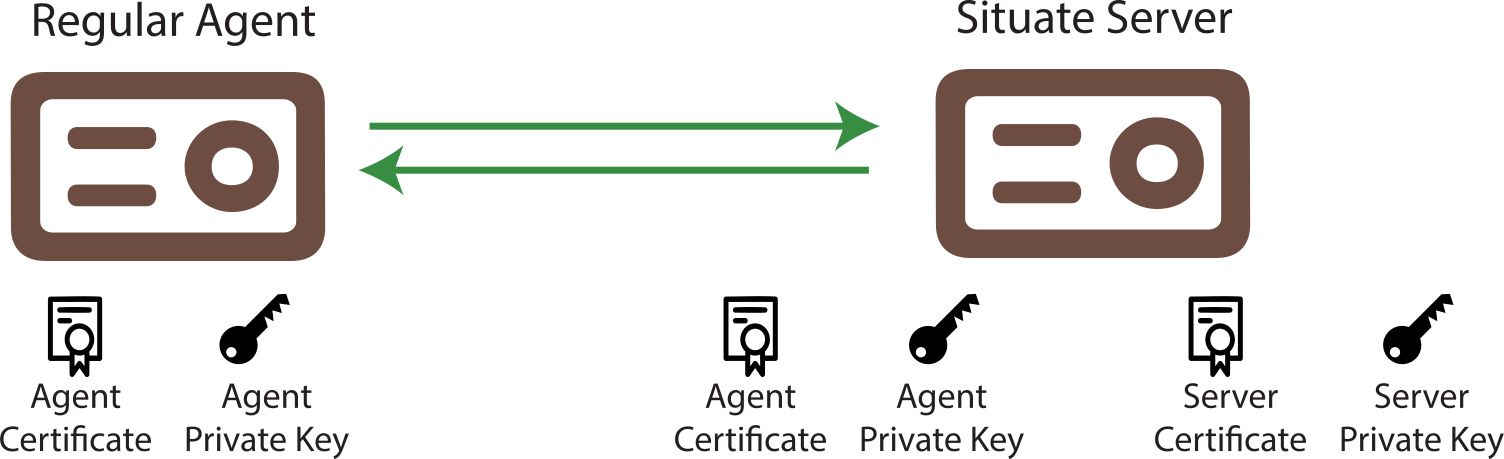
When the server connects to an agent, the server and agent exchange certificates per the SSL protocol. By using the certificates and private keys, the connection is secured.
Key Exchange
The agent and server don't just connect. There is a process in place wherein the server tests the authenticity of an agent and the agent tests the authenticity of the server. The server keeps a keystore that contains each agent's certificate. During a connection, if the agent's certificate does not match the certificate on file, the connection is terminated. The agent keeps the server's certificate as well. This stored on disk in the security/servers directory.
Before the server and agent will trust one another, the certificates must be exchanged. This part of the process of adding an asset. During that process, Situate will prompt for a login.
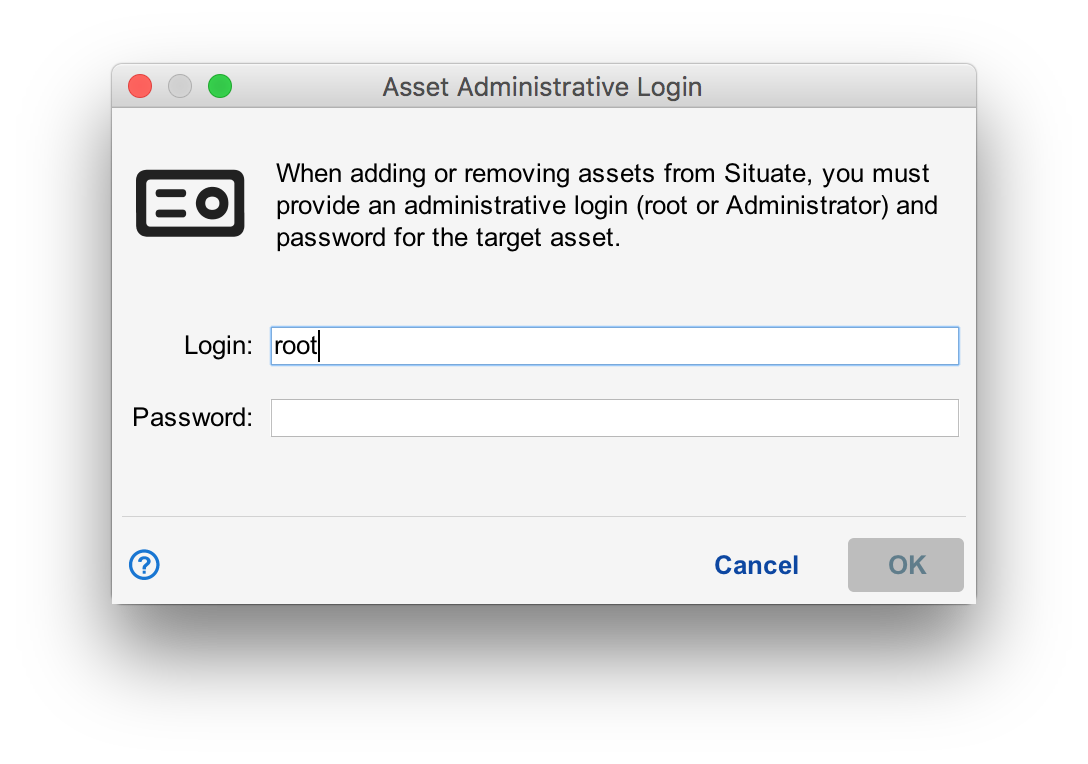
The person adding the agent must enter the root login and password for a Linux computer or a login and password for an account in the domain admins group. By doing this, you are proving to the agent being added that you have the right to control it and want it to be added. Once successfully added, the agent will install the server's certificate in the security/servers directory and the server will install the agent's certificate in the keystore.
Manual Key Exchange
Manually adding a server's certificate into the agent's allowed managers folder allows newly added agents to skip the login prompt that occurs when an agent is added. Since you must be root or a user in domain admins to install the certificate, you prove that you can manage the agent. The asset can be added as normal without the need of the login/password popup.
To manually exchange keys, simply find the server's key:
<install-path>/security/<domain>-cert.pem (UNIX)
<install-path>\security\<domain>-cert.pem (Windows)
Then, copy the key to the target asset's allowed managers folder:
<install-path>/security/servers/<domain>.pem (UNIX)
<install-path>\security\servers\<domain>.pem (Windows)
Resyncing Keys
There are times when keys need to be re-exchanged. This can happen when the agent is uninstalled and re-installed without preserving the agent's keys. When this happens, the agent will be shown in an error state in the Asset View. From the Asset View, you can right-click on the agent and select "Reset Connection Keys/Certs". If the server's certificate is no longer installed on the agent, the login dialog box will be presented. Once reset, it will take several seconds before Situate will reconnect.