
Appearance
Search Workflows
The search workflow function allows you to find workflows that have (history) or will (future) run from many different perspectives.
Search Workflows from Queues or Groups
Select a workflow queue or group, right-click and select "Search Workflows". This action opens a Search Workflows tab to search for workflows that belong to the selected queue or group.
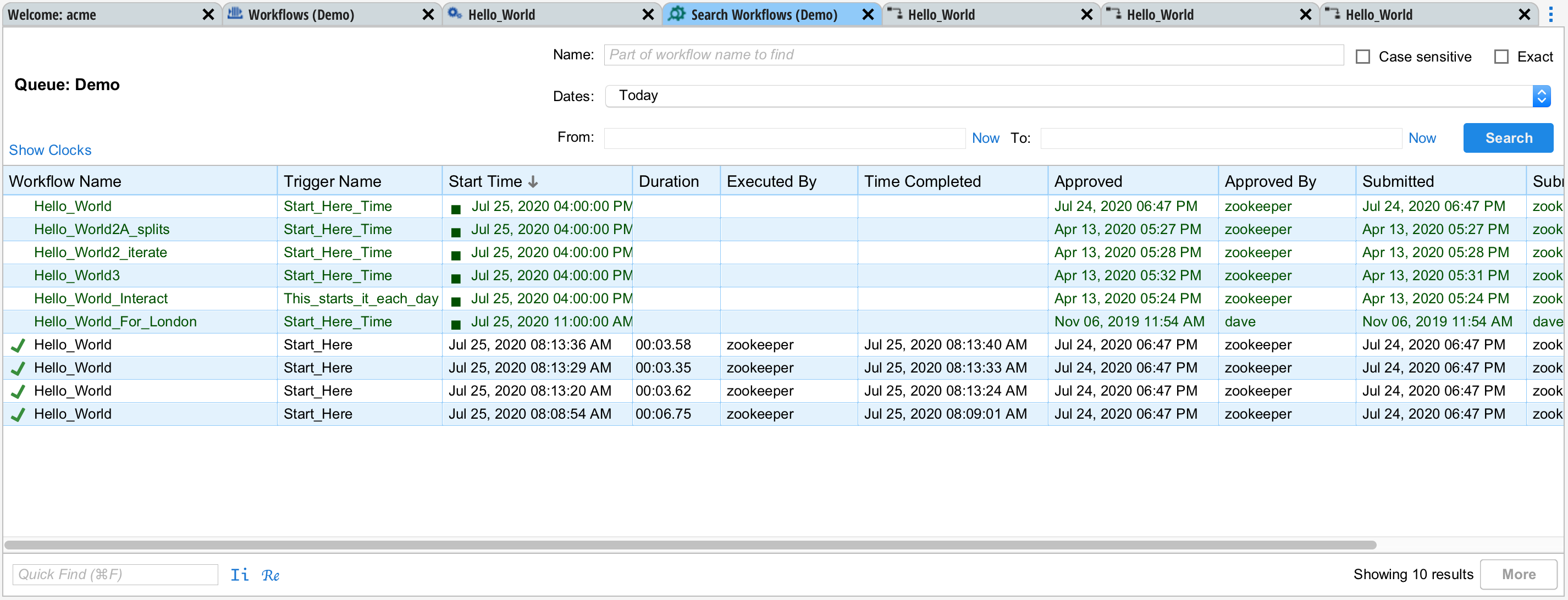
In the example above, no particular workflow was entered, "Today" was selected for dates and "Search" was pressed. The table shows all workflows that have already or will run today based on their current schedule.
Rows that have dark green text are future events whereas rows with black text have already occurred.
The leftmost icon shows the state along with the name of the workflow. The states are exactly the same states displayed in the Queue View.
The rest of the fields mimick those found in the Queue View. There is an additional "Duration" field that shows how long the workflow took to execute.
Displayed and Actual Times
If you hover your mouse over the "Start Time" field, you will see a popup. This popup shows the displayed time (the time from the perspective of your user interface) as well as the actual time, which is the time the workflow ran or is scheduled to run from the perspective of the workflow (the workflow may be scheduled in a different time zone).
The "Start Time" field may also contain a green square. This denotes a future runtime.
Show/Hide Clocks
You can press the "Show Clocks" button near the top of the table on the left to display a set of clocks. Each clock represents a time zone in use by at least one workflow in Situate.
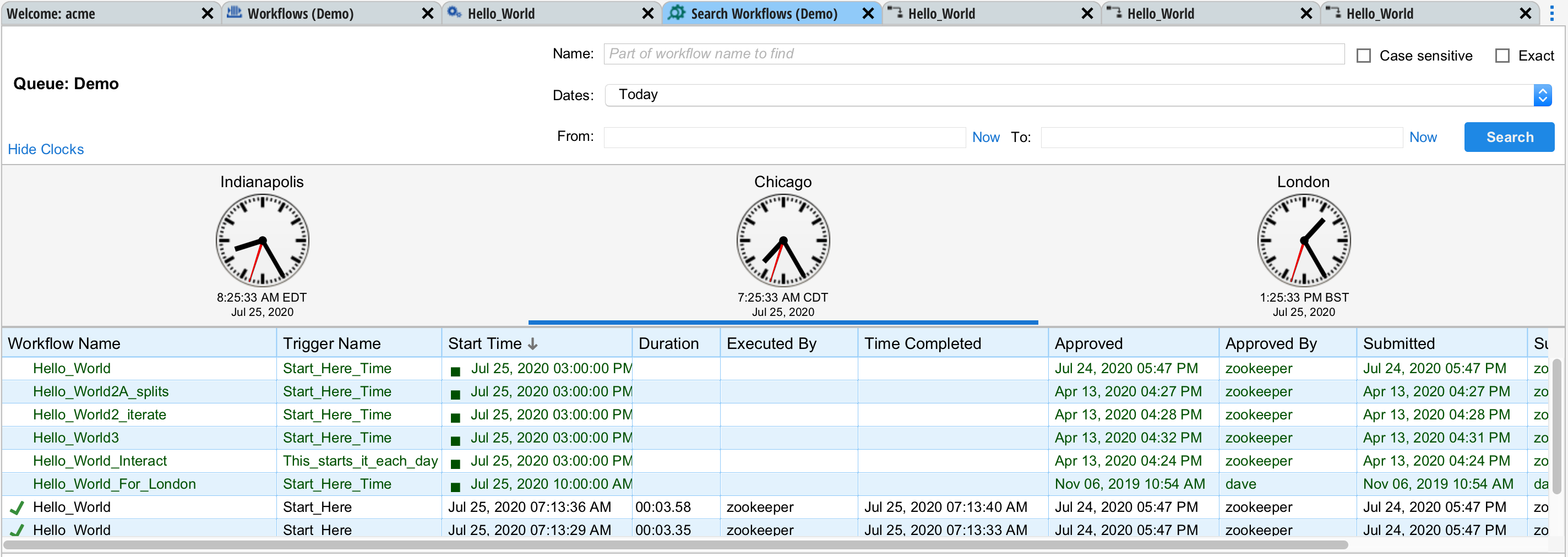
The clocks show the current time in each time zone. Pressing or selecting the clock (you will see a blue bar underneath the selected clock) changes the displayed time zone for the table below. Therefore, if you want to look at times from the perspective of London, for example, simply select the London clock and the view will update.
Name
If you want to search for a particular workflow, enter a search string in the name field and press "Search". The "Case sensitive" check box can be used to make the search case sensitive. The "Exact" check box causes the search to match only workflow names that exactly match rather than matching all workflows that contain the search string.
Dates
The dates selector allows you to choose among many commmon searches such as Today, Yesterday, etc. You may also enter a custom date range. It's important to remember that the Search Workflows feature can look for both past and future events. Some date ranges will only look for past or future events because of the range selected.
Limit
The result set is limited to a fixed number of results based on your server's configuration. The "More" button can be used to request more results.
Search Workflows from the Queue View
You can also launch the Search Workflows tab from a specific workflow in the queue. This done by selecting the workflow in the queue, right-click, and select "Search Workflows". This the same as opening the Search Workflows tab from the same group the Queue View was launched. The workflow name is pre-populated and the "Exact" and "Case Sensitive" check boxes are automatically selected.
Search Workflows from an Asset or Asset Group
You can open a Search Workflows tab from an asset or asset group. Right-click on the asset or asset group and select "Search Workflows". When opened from an asset, Situate will only display workflows that have or are likely to execute on the selected asset.
This can be very useful when collecting data for auditory purposes such as a SOX audit because it is easy to understand what ran where. Also, it is useful when you want to take a machine down for maintenance because you can easily see what will run on that machine in the future.
Search Workflows from a User or Service Account
You can open a Search Workflows tab from a user or service account. Right-click on the user or service account and select "Search Workflows". When opened from a user, Situate will only display workflows that have or are likely use that user in some fashion.
This can be very useful when collecting data for auditory purposes such as a SOX audit because it is easy to show what workflows use what users, especially if those users have root or Administrator access.