
Appearance
File
The File trigger starts a workflow whenever a file is created or modified.
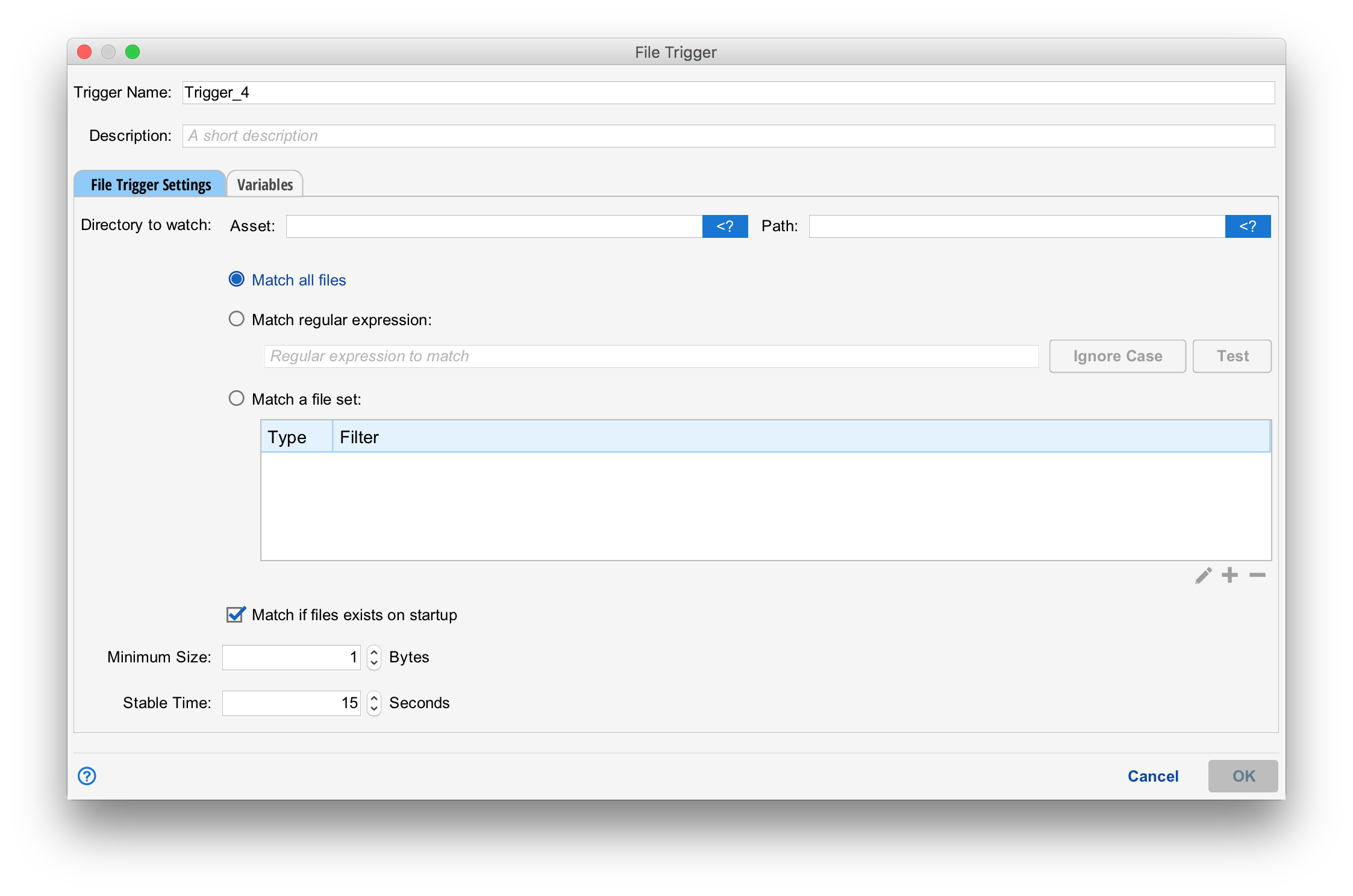
Like all triggers, the file trigger requires a name and description. Variables can be set just like any other trigger (See Passing Variables with Triggers) this is done on the variables tab.
Directory to Watch
The directory to watch is established by providing an asset and absolute path on that asset where you want to watch for file changes.
There are then three radio button settings that control which files within that directory are to be monitored.
- "Match all files. Watch all files withing the specified directory.
- Match regular expression. Only files matching the given regular expression are matched.
- Match a file set. Watch for several files to exist before firing. This is discussed in more detail below.
Startup Behavior
If the "Match if files exist on startup" is checked, then any matching files that exist when this file trigger becomes active (situate is started, the trigger is enabled or an administrative hold is released) cause the trigger to fire. Otherwise, the trigger will only fire when new files appear.
Minimum Size and Stable Time
The "Minimum Size" is the minimum size of each file before the trigger fires. The "Stable Time" is the number of seconds the file must sit without changing (growing or being modified) before the trigger will fire.
Applications often create a file then wait several minutes before completing their contents. Similarly, a file being FTP'ed may continue to change for several minutes as it's being transferred. These settings can help prevent firing to early.
Matching a file set
When the "Match a file set" radio button is selected, one or more files must all match before the trigger fires.
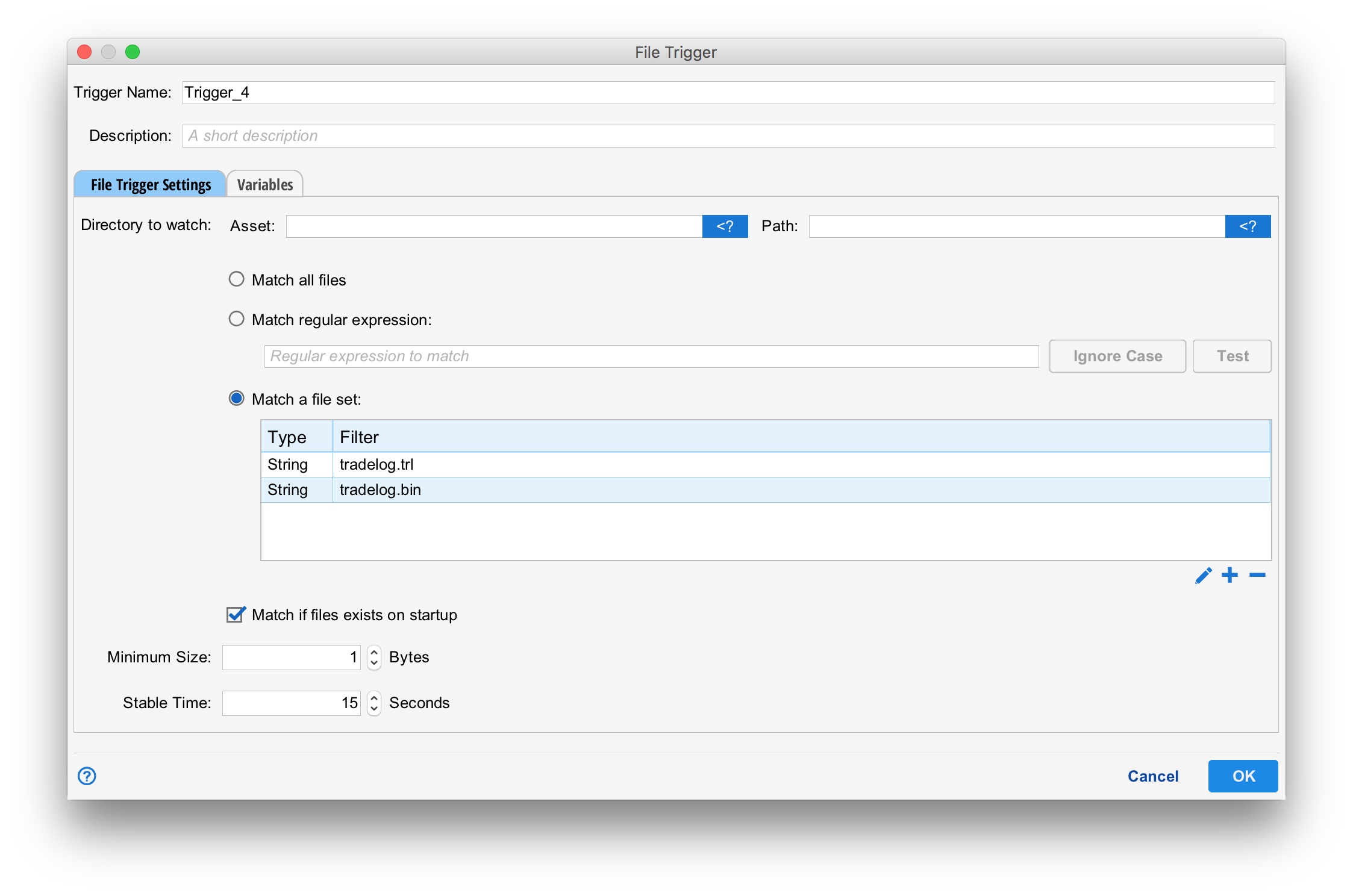
In the example above, two files one ending in .trl and one in .bin are required before the trigger fires.
Variables
The file trigger automatically sets a variable "files" when it fires. The "fires" variable will always be an array containing two elements. "fileName" is the simple name of the file that changed with no leading path. "fullFileName" is the URI to the file. For more information on this format. See XURI).
A javascript-like view of the results of the example above might be:
files = [
    {
       "fileName": "tradelog.trl",
       "fullFileName": "asset://ffffffff-ffff-ffff-ffffffff/opt/ftpserv/incoming/tradelog.trl"
    },
    {
       "fileName": "tradelog.bin",
       "fullFileName": "asset://ffffffff-ffff-ffff-ffffffff/opt/ftpserv/incoming/tradelog.bin"
    }
]