
Appearance
Importing Crontabs
Situate has the ability to import crontabs from an asset (a single machine) or asset group (several machines all at the same time).
Users
The cron importer will run as the user you are logged in as. Linux permissions dictate it can only read crontabs entries for your user. If you login as root, then Situate will load all crontabs regardless of the user.
Starting an Import
To begin importing crontabs, select the appropriate asset or asset group from the Object Browser. Then, right-click and select "Import Crontab".
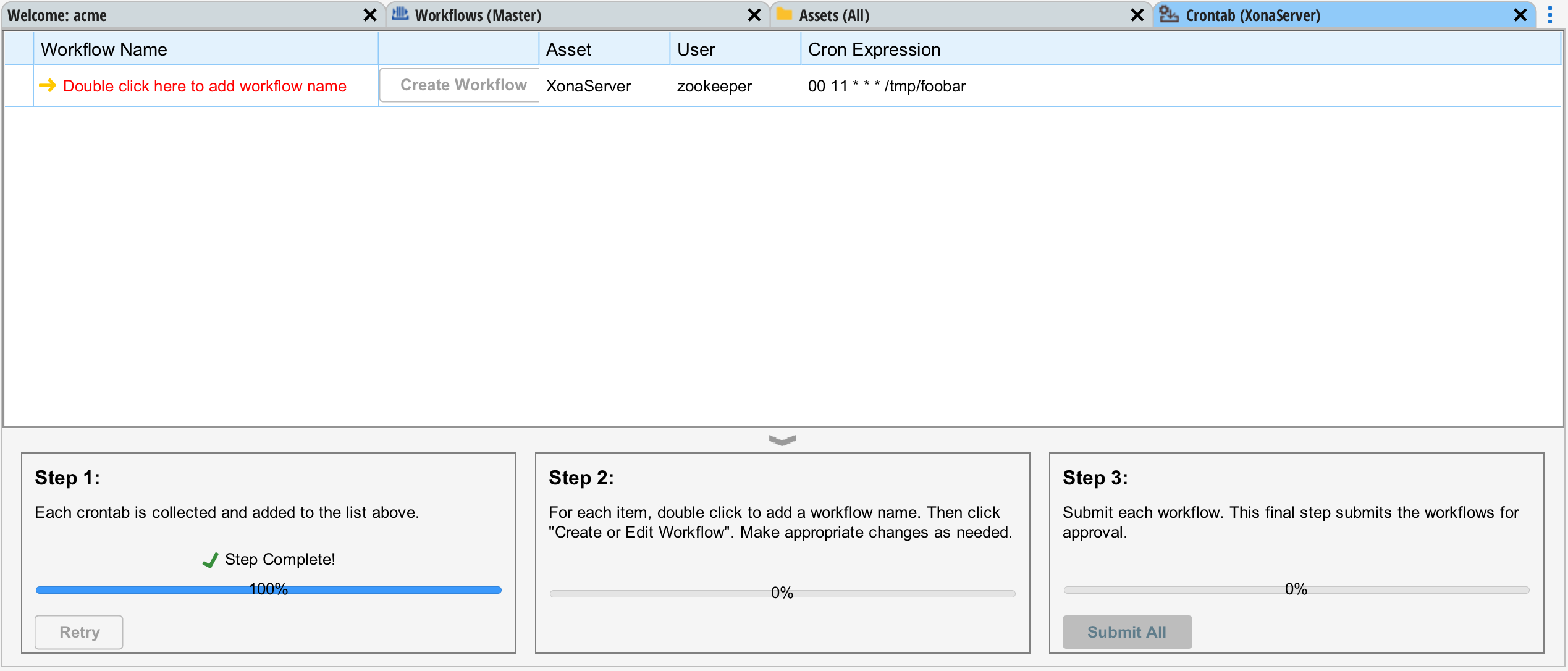
Situate will open a new import tab and gather the crontabs. This may take several minutes.
Naming Workflows
Crontab entries do not have names, but Situate workflows do. The first step is to go through each imported crontab entry and double click the button "Double Click Here to Add Workflow Name" to give it a name.
Creating Workflow
After naming your workflow, you will see a "Create Workflow" button appear. Press this button to turn the crontab entry into a workflow and open it in the Workflow Designer. You can adjust your workflow as needed. When you are done, press the "Save Work and Return" button.
Submitting Workflows
Once each workflow has been created, you may submit all of the workflows by pressing the "Submit All" button in the lower right of the tab.
Removing Unwanted Imports
You can remove unwanted crontab entries by selecting the one you do not want, right-click and select "Delete".