
Appearance
Failover
It is possible to setup a backup Situate server to take over should the primary fail. This document explains the steps to setup your back and how to failover to it.
## Setting up a Backup Situate

Step 1. Create a Backup Instance
Identify and/or load a computer to be used as the backup Situate server. Like your Situate server, this machine should be dedicated for this purpose and should meet all the requirements of a Situate server.
For the purpose of this document, we'll call this machine xonasrv2, assume the primary is xonasrv1 running the domain xonaprd
Step 2. Install the Situate Server
Install situate as a server using the installation instructions. Make sure to select "P" for Primary when asked. For a domain, use your domain with "bak" appended to it.
In our example, this will become xonabak
Step 3. Add Your Backup Server
Next, add your backup server to your primary domain as you would any other asset. See Managing Assets
Step 4. Add Authentication for Administrator
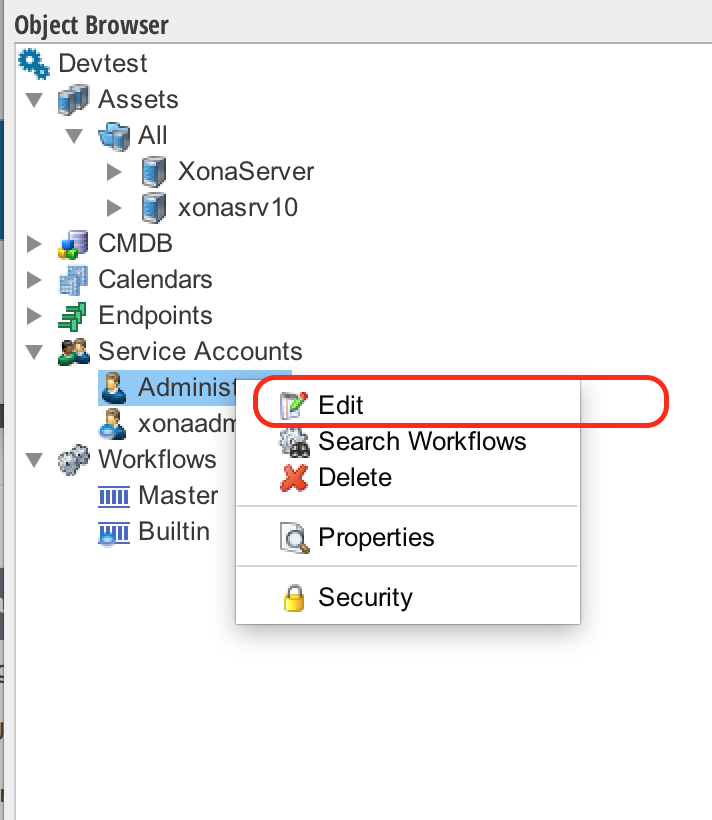
Under "Service Accounts" in the object browser, find and edit the "Administrator" account.
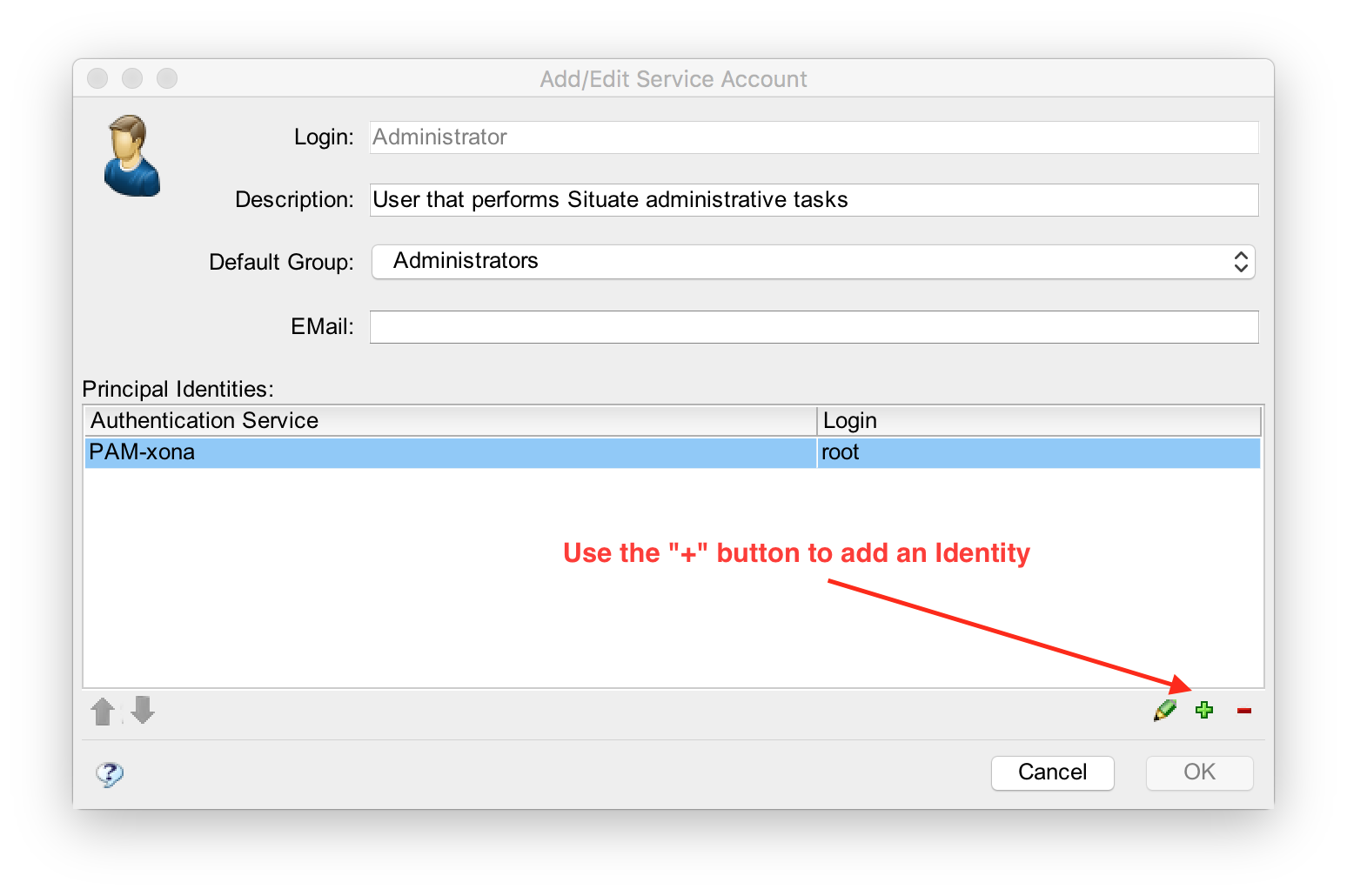
Use the "+" button to add an identity
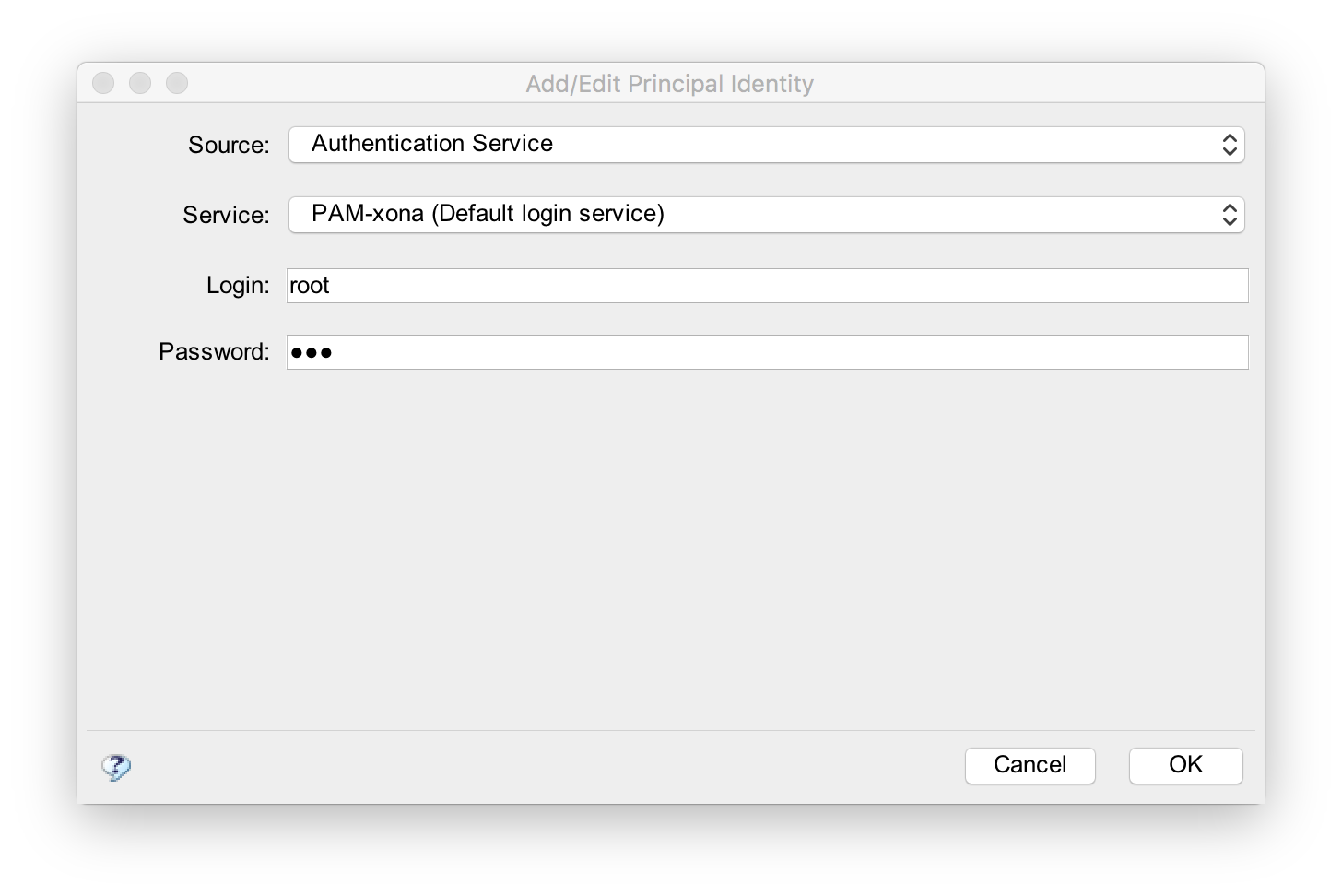
Select your default source and service and enter "root" for the root user. Enter "xxx" as the password.
Save the changes in the user.
Step 4. Setup Backups
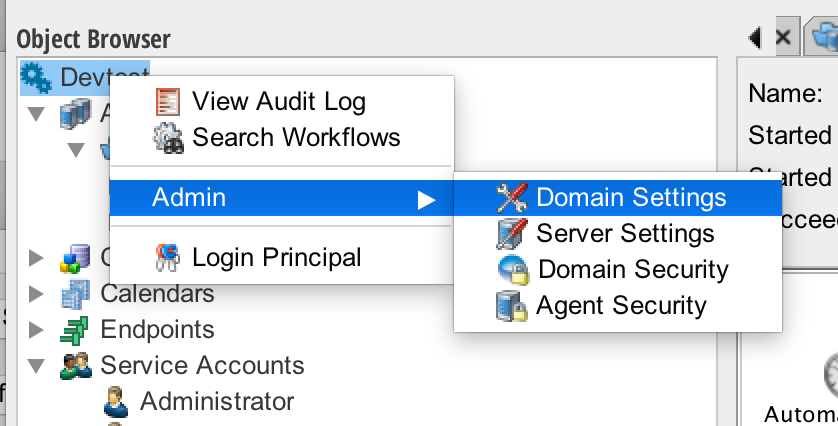
In the object browser, right-click on the topmost (domain) item and select "Admin" then "Domain Settings"
In the "Backup" tab, enter your backup asset. For Path, use /opt/situate_yourdomain_backup. In our example, we'd add /opt/situate_xonaprd_backup
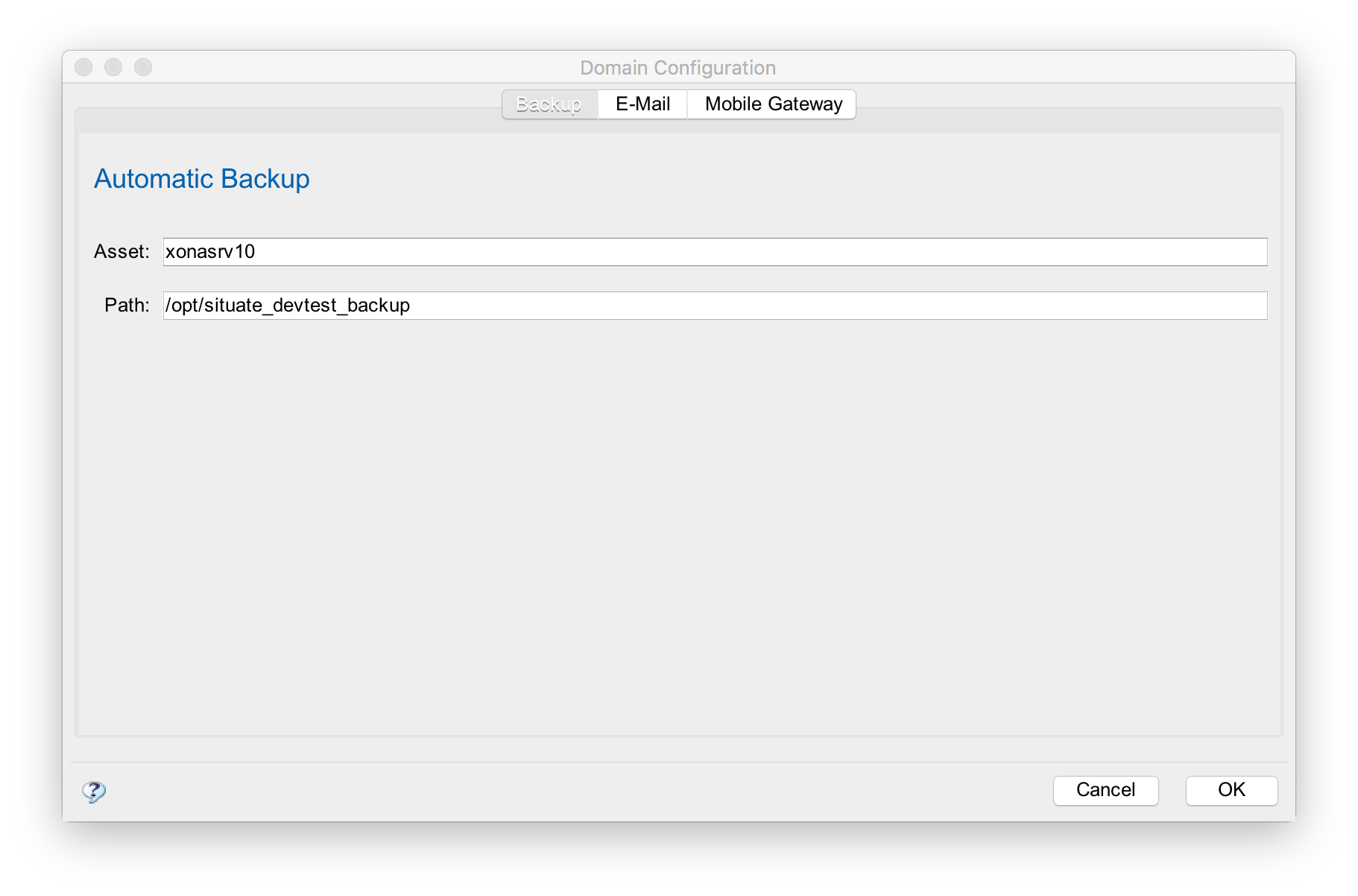
Save your settings.
Step 5. Edit /etc/situate.conf
On your backup machine (xonasrv2), edit /etc/situate.conf and add the BACKUPFOR variable.
`
sudo vi /etc/situate.conf
`
Append the follwing lines substituting xonaprd for the domain you want to backup.
BACKUPFOR=xonaprd

export BACKUPFOR
Then, restart situate.
cd /opt/situate/bin

sudo ./situatectl restart


Step 6. Test Your Backup
In the builtin queue, run the "auto-backup-situate-server" workflow and verify it succeeds.
You may wish to edit tis workflow and adjust the AutomaticBackup trigger to run with the duration you want.
## Recovering From Failure

Step 1. Run the Failover Script
After making absolutely sure your primary is down, login to your backup machine and run the failover script.
cd /opt/situate/bin

sudo ./failover-to-backup.sh
You will be asked if you want to proceed. Answer appropriately. This procedure will restart your server making it your primary.
Step 2. Change the sit- Alias
Most client machines find the Situate server using the sit-domain naming convention. DNS will need to be updated to point to the backup computer.