
Appearance
Email Router
The email router task takes an email and an attachment and attempts to match it against one or more routing rules. If matched, it sets several variables so that subsequent tasks can process the attachment.
The email router task should be used in a workflow like the one below:
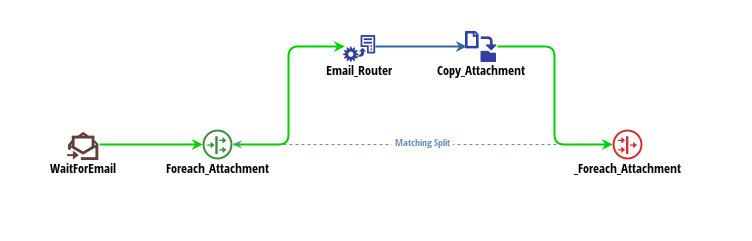
In this workflow, an email trigger is used to watch an email address for incoming email. When email comes in, the workflow is started. The split Foreach_Attachment moves through each attachment in the email calling the Email_Router task for each one. The email router task examines its configuration for a matching rule. If found, the email router task sets several variables and succeeds. The subsequent edge and file transfer task use these variables to copy the attachment to the intended location based on the email router task's configuration.
The workflow above can be downloaded route_email.xml and imported into situate. Please note: the workflow depends on an email endpoint that you will not have so you will need to edit the workflow before it can be submitted.
Configuration
The configuration of the email router task consists of one or more routing rules.
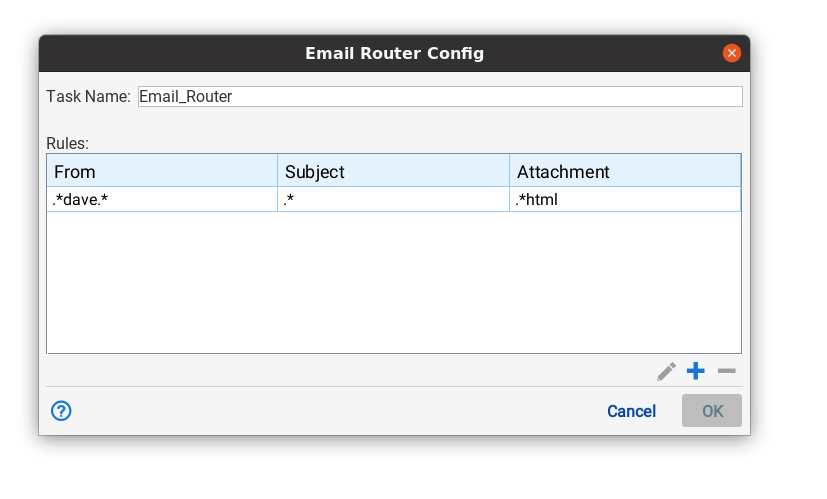
Rules can be added, edited or removed via the "+", pencil or "-"
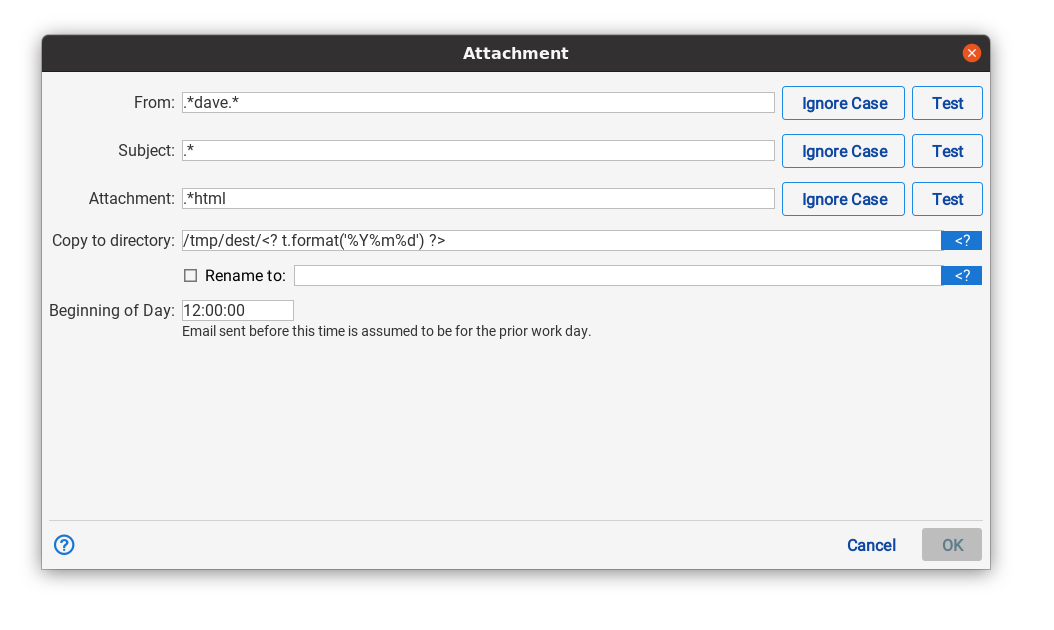
Each rule uses a standard regular expression to match the sender (from), the subject and the name of the attachment. In this example, the rule looks for an email containing "dave" in the "from" field. Any subject, and an attachment ending in .html.
Inputs
The email router task expects two variables to be set.
- email. The email variable is set to a digest of the incoming email by the email trigger. See the email trigger.
- attachment. The attachment variable is set to the portion of the email digest that describes the attachment being processed. This is accomplished by the split (see the workflow example).
Outputs
When successfully matched, the email router tasks sets the following variables.
- CopyTo. The location specified in the rule. This will be the directory to which the file is copied.
- CopyFrom. The location of the decoded attachment on the Situate server.
- RenameTo. The name the file should be renamed to. If no rename is specified, this value will be the original name of the attachment.
- t. The variable "t" is set to the time the email came in unless that time was less than the "Beginning of day" setting. In that case, "t" is set to the prior day and if that day were to fall on a Saturday or Sunday, it would be moved back to Friday. The example workflow shows how to use "t" to create different output directories.