
Appearance
Workflow Log View
When a workflow is executed manually or a running or unconfirmed workflow is opened, you see the Workflow Log View.
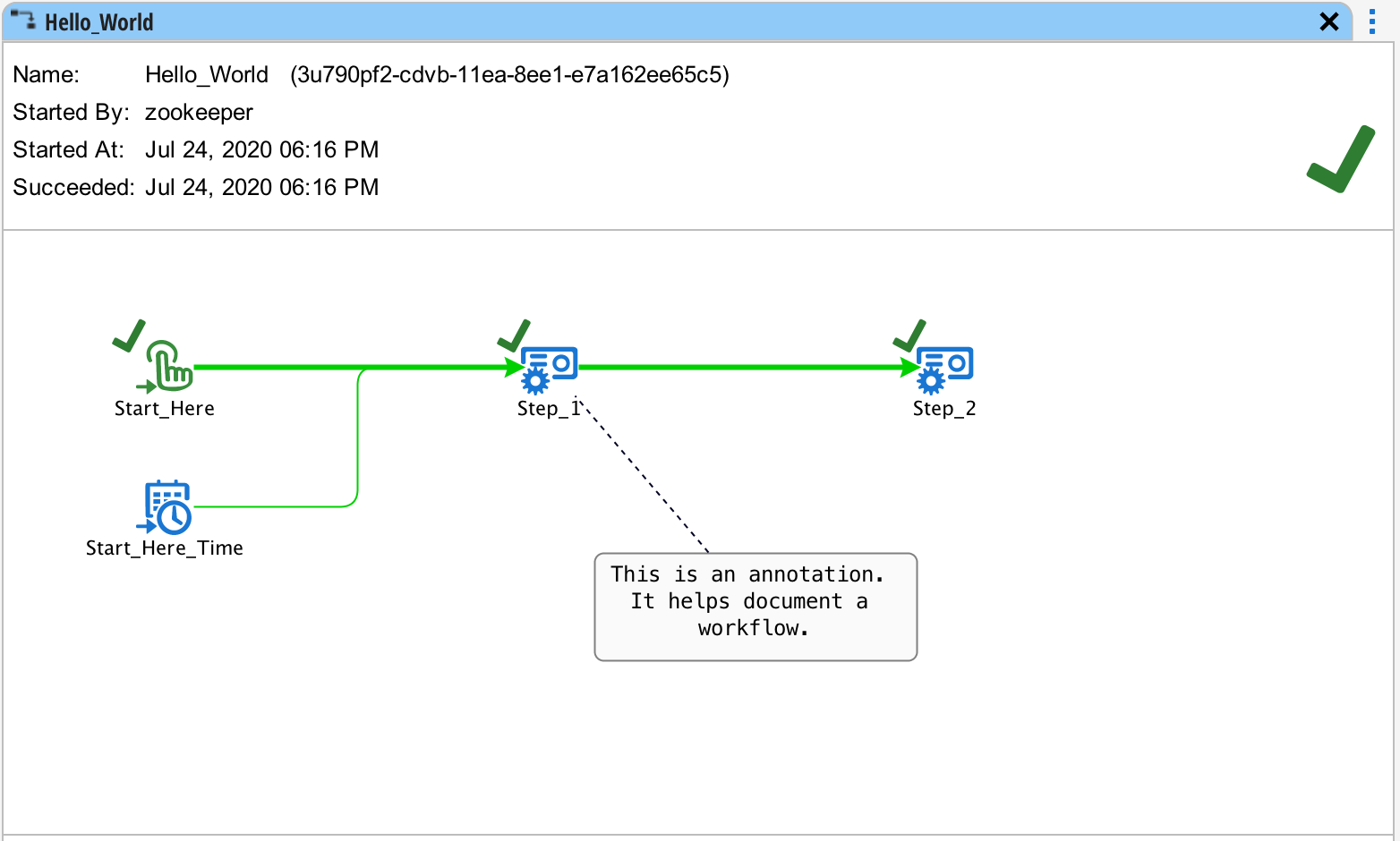
This view looks a lot like the workflow from the Workflow Designer except now status information has been added. If the workflow is running, you will see status changes in real-time.
A the top on the left you see details about how started the workflow, when it started, how long it took to execute. At the top on the right, you see a status icon (in this example, the green check) that denotes the final status of the workflow.
Next to each task and trigger, you see a status icon denoting the final status of that task or trigger. If no status icon is shown, the task or trigger has not run.
Status
The status icons are:
| Icon | Description |
|---|---|
 | The workflow or task is running. |
 | The workflow, task or trigger has completed successfully. |
 | The workflow, task, or trigger has completed with a failure. |
 | The workflow, task or trigger is in the process of being canceled. It is currently still running. |
 | The workflow, task or trigger has been canceled and is no longer running. |
Detail
To see detail on each task or trigger, click on the state icon. This will open a status window at the bottom.
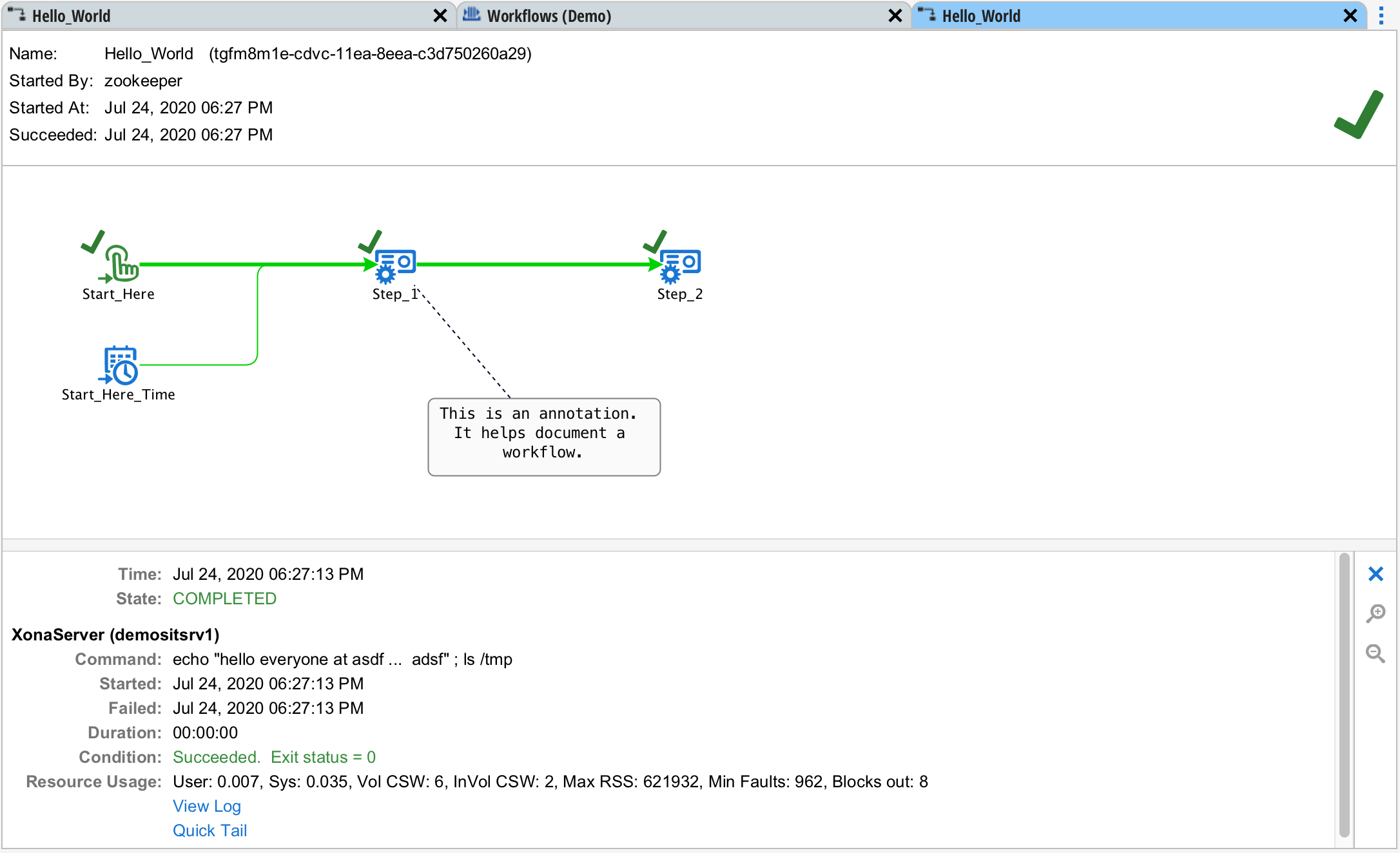
In this example, you see the detail for a remote command task. The blue lettering, "View Log" and "Quick Tail" are buttons that can be pressed to bring up further detail. The remote command task has these two. Other tasks will have other buttons.
The detail view can be closed by pressing the blue "X" button at the right. It is also closed by pressing ESC.
View Log
The view log button opens the output of the remote command task in a new tab.
Quick Tail
The quick tail causes a smaller window to be opened to the right of the status view. The font size can be adjusted by pressing the magnifying glass buttons on the right.
Instances
Whenever a task executes more than once, the state detail will show each instance on the left.
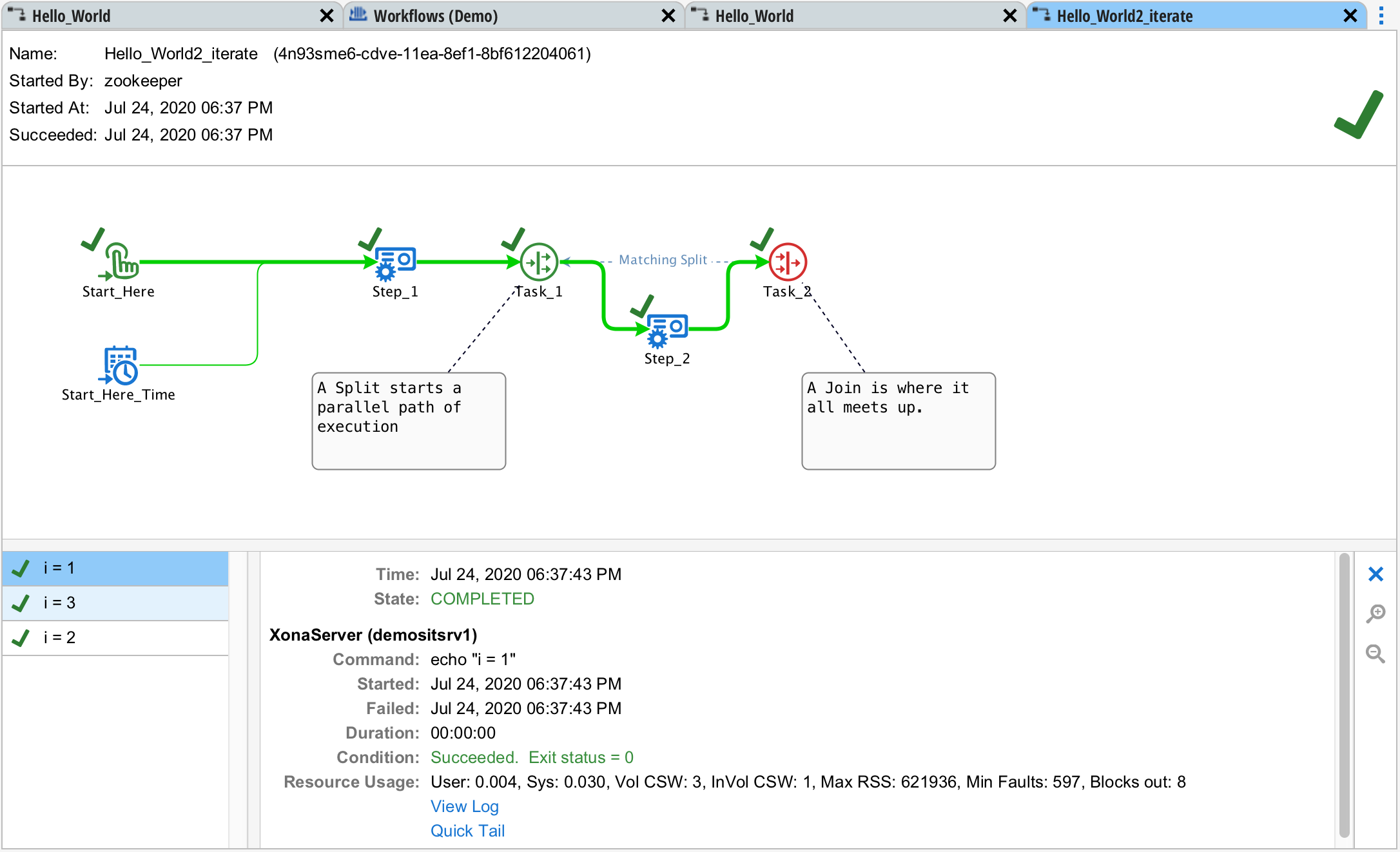
When you select an instance on the left, the detail for that particular instance is shown on the right.
Drilling Into Other Workflows
When a workflow calls another workflow, the detail on the workflow task will have a "Go to workflow..." button.
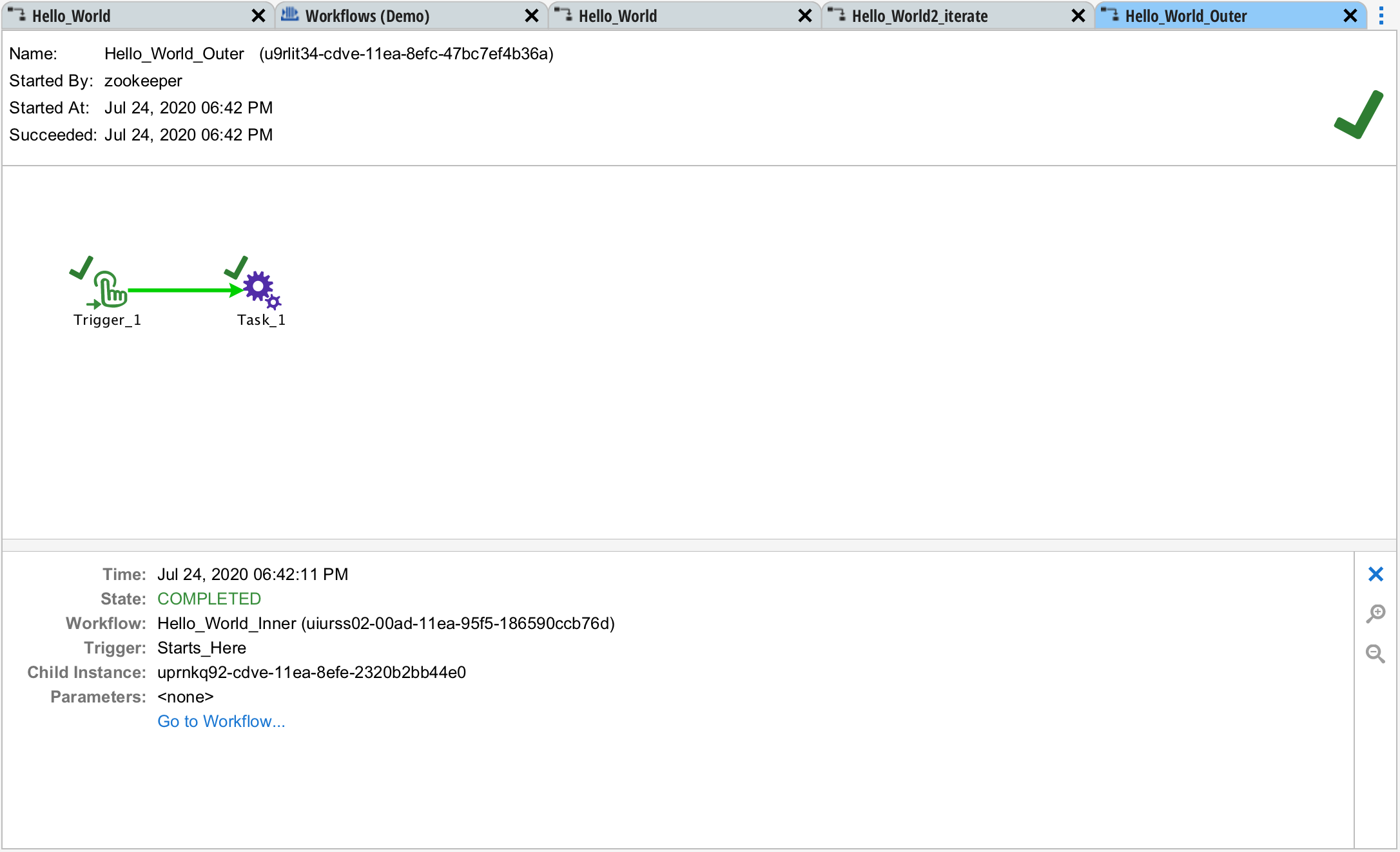
You can press this button to go to that workflow.