
Appearance
Email Endpoints
An Email endpoint manages a sending and receiving connection to an email sever.
Creating or Editing an Email Endpoint
You create or edit an endpoint in the Object Browser under "Endpoints".
To create a new endpoint, expand "Endpoints", right-click on "All" and use the "New" menu item. To edit an endpoint, expand the "All" folder, find the endpoint, right-click and select "Edit".
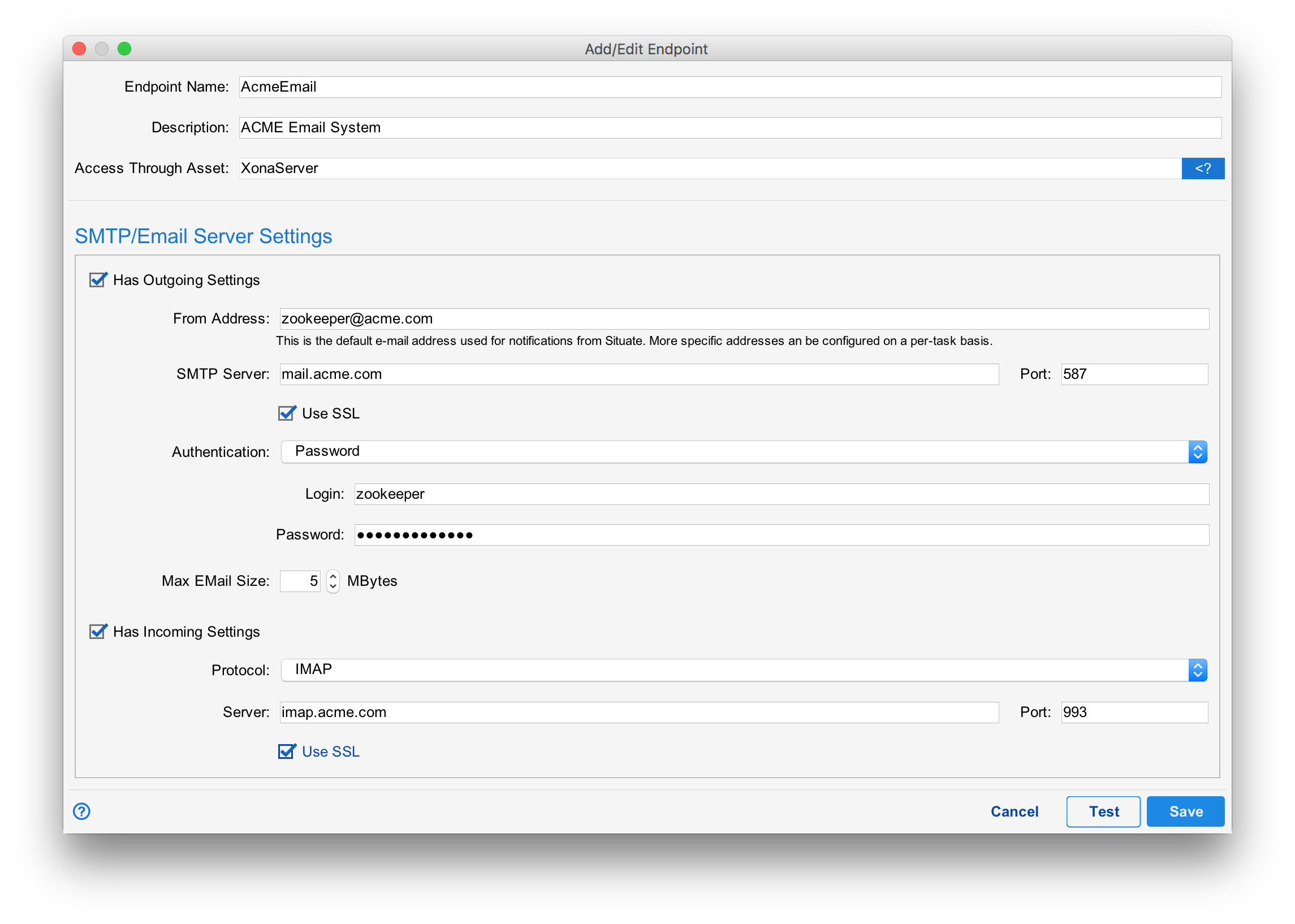
Common Settings
| Endpoint Name |
|---|
| Description |
| Access Through Asset |
Outgoing Settings
When "Has Outgoing Settings" box is checked, Situate will use the following settings to connect to an SMTP server to send email:
| From Address | A default email address to be used when no other "from" address is specified. This only a default. The email task allows you to specify who the mail is from. |
|---|---|
| SMTP Server | The hostname or IP address of the SMTP server. |
| Port | The port the SMTP server is listening on. This typically 25, 587 or 465. |
| Use SSL | If set, SSL (Secure Socket Layer) will be used to secure (encrypt) email traffic. We strongly suggest this be set. |
| Authentication | |
| Login | When Authentication is set to "Password", this login will be presented to the SMTP server for authentication. |
| Password | When Authentication is set to "Password", this password will be presented to the SMTP server for authentication. |
Incoming Settings
When "Has Incoming Settings" box is checked, Situate will use the following settings to connect to an IMAP server to send receive email:
| Protocol | The only protocol currently supported is IMAP. |
|---|---|
| Server | The hostname or IP address of the IMAP server. |
| Port | The only protocol currently supported is IMAP. Typically 443. |
Testing Your Settings
Once you have entered your settings, you may use the "Test" button at the bottom to test them. To test settings, Situate must first save the settings. Therefore, once tested the "Save" button will be disabled and will only re-enable if settings are further changed.
When testing settings, a dialog will appear that may require you to enter information to perform the test such as an email address to send a test message. It may also ask for a login and password for an IMAP server.
The test dialog will show a detailed transcript of the outgoing and incoming test.
Setting Up Authentication for Incoming Email
Workflows run as different users. The login and password for the IMAP server will depend on the specific user context of the workflow. Credential (login and password) for the mail server must be configured on a per-user basis under "User and Service Accounts". See Identities for more information.
The Default Email Endpoint
Situate ships out-of-the-box with a single default, email endpoint. This endpoint is used by the default notification workflow to send email to users when workflows succeed or fail based on the notification settings. This endpoint may only send email.
Configuring Microsoft 365
Microsoft 365 (formerly Office 365) requires OAuth2 authentication. For instructions on configuring Situate to work with Microsoft 365, see Configuring Office365.