
Appearance
Workflow Options
The workflow options can be found on the "Options" tab in the workflow designer.
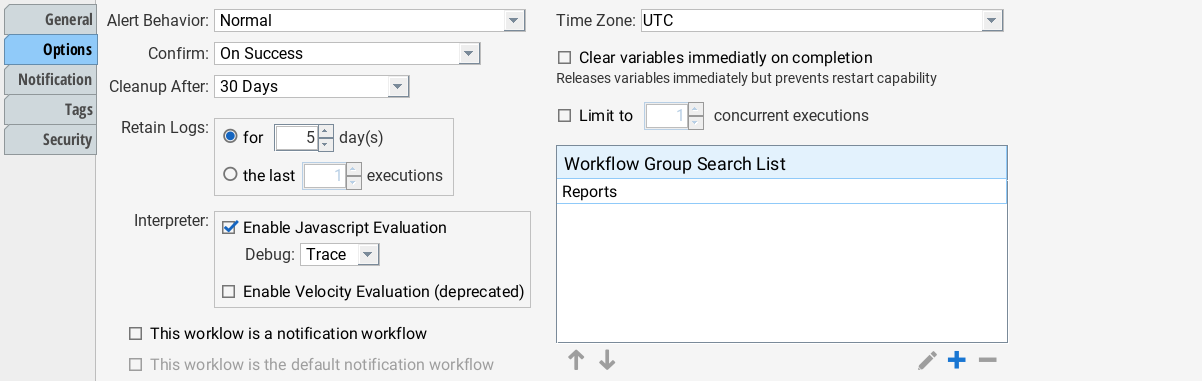
Alert Behavior
The alert behavior describes how Situate treats the workflow with regard to alert reporting.
The alerts view is a tab in the Output Area of the UI. You can see all of the alerts in that tab. Situate's alert system may also be integrated with external monitoring systems. When so configured, Situate will pass alerts on based upon the alert behavior settings.
The following are the available values:
| Normal | An alert will be raised for each failed, unconfirmed (needs attention) workflow. Confirming the workflow will clear the alert. |
|---|---|
| Periodic | An alert will be raised whenever the last execution of the workflow has failed. For example, let's say you have a workflow that runs every 10 minutes to backup some data. Since you really only care that the last one was successful and not each run, selecting "periodic" will raise the alert when the workflow is failing and clear it when it's working again. |
| Critical | The same as "normal" except the alert level is set to "critical" instead of "error". |
| Never | Do not alert on this workflow. |
Confirm and Cleanup
These settings control how and when workflows are automatically confirmed. See Automatically Confirming Workflows.
Retain Logs
The retain logs settings control how long Situate keeps logs after a workflow exits. Once a workflow's log has been cleaned, you cannot open or view the details of the workflow's execution, though the audit log will have general details.
| For X days | When selected, Situate will retain the logs for the specified number of days. The default is 30 days. |
|---|---|
| The Last N Executions | Situate will retain logs for the last N executions. |
Interpreter
The interpreter settings allow you to control which interpreters are available to code within the workflow. You should select "Enable Javascript Evaluation". This the default. The older Velocity interpreter has been kept for backward compatibility but should not be used. Its use is undocumented.
Debug
The debug setting can be used to debug the code in your workflow. If you want to debug the code in your workflow, turn the debug setting to "Normal". To turn it off, set it to "None".
When debug is turned on, a lot of additional logging is performed and workflow execution logs can become quite sizable.
For more information on debugging workflows, see Debugging Workflows.
There is also a "Trace" setting. This setting is more for XonaSoftware support.
Notification Workflows
A notification workflow is a workflow that runs whenever other workflows complete (most of the time, because they fail). If the workflow is a notification workflow, check the "This workflow is a notification workflow" box. Once checked and approved, this workflow will appear in the notification drop down.
If the "This workflow is the default notification workflow" is checked, this workflow will be automatically selected in the notification drop down for all new workflows.
Time Zone
Specifies the time zone the workflow executes in. All time-based triggers, time calculations, output of times and/or dates are computed in the specified time zone.
Clear Variables
If the workflow creates a lot of large objects, it might be preferable to check the "Clear variables immediately on completion". This frees those variables but does prevent you from restarting the workflow later.
Limit Concurrency
When checked, there can be no more than the selected number of concurrently executing copies of this workflow. Assume you have a workflow that runs a report and a group of people fires off these reports off and on all day. The report is a very heavy user of your database so you only want at most two reports running at once. So, you set the concurrency to two. When the third one is started, it simply waits for the others to complete before it begins.
Workflow Group Search List
Specifies a list of locations the workflow task will use to look for the workflow it is configured to execute.
When a workflow calls another workflow, it searches for that workflow in the same workflow group. If it does not find it, it looks at the list of paths in the "Workflow Group Search List". If it still does not find the workflow, it searches the parent folder and so on until it searches the queue folder.