
Appearance
Parameters (REST/MCP/API)
The Parameter method is used exclusively with Action Triggers to receive values from external callers. Unlike other variable methods which compute or prompt for values within Situate, Parameter variables expect their values to be passed in by the calling system—whether that's a REST API call, an MCP tool invocation, or a parent workflow.
When to Use Parameters
Use the Parameter method when:
- A workflow needs input from an external system
- Values must be provided at runtime by the caller
- The workflow is designed for programmatic invocation (not manual UI execution)
The Action Trigger Dialog
The Action Trigger configuration dialog shows both the trigger-level description and the variables defined for the trigger:
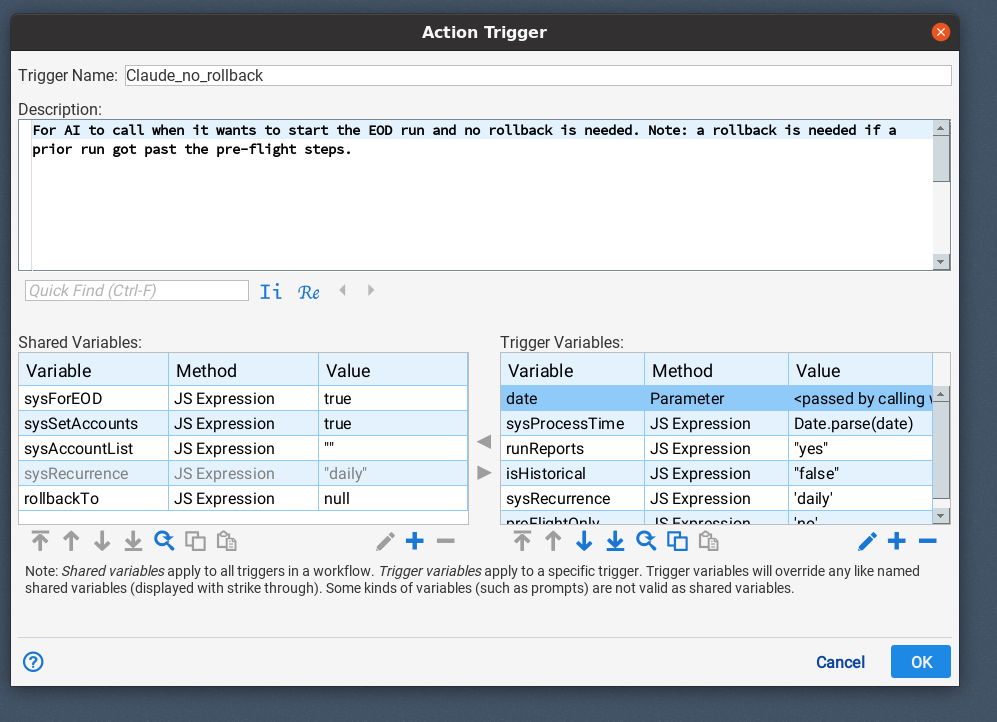
Key elements:
- Trigger Name: A unique identifier used by callers to invoke this specific trigger
- Description: Explains when and why to use this trigger (see Trigger Descriptions)
- Trigger Variables: Variables specific to this trigger, including Parameter variables that must be supplied by callers
In the example above, the date variable uses the Parameter method, indicated by the "Parameter" entry in the Method column and the value showing "<passed by calling...>".
Defining a Parameter Variable
To define a parameter, add a variable to the trigger and set its Method to "Passed Parameter":
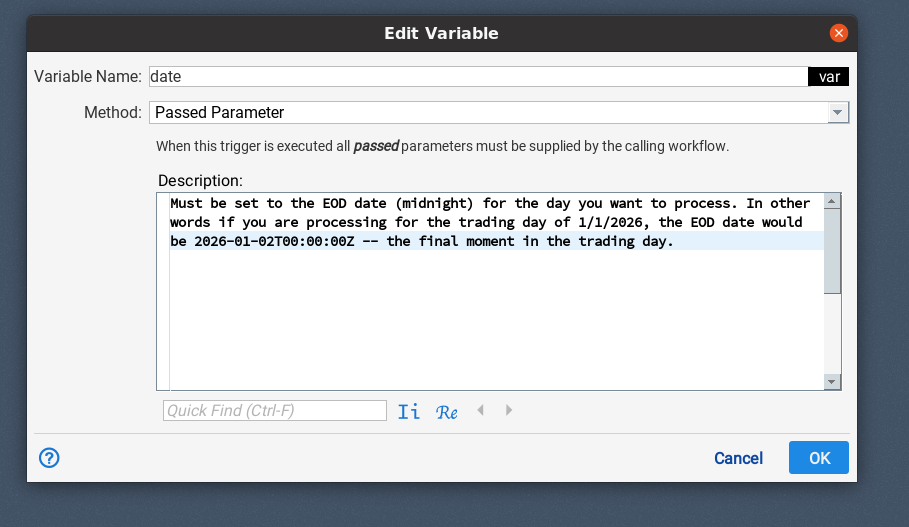
The Description field is essential—it tells callers exactly what value to provide and in what format. In this example, the description explains that the date must be set to the EOD date at midnight, with a concrete example showing the ISO format expected.
Writing Effective Descriptions
Descriptions serve multiple audiences:
- Human operators invoking workflows via UI or scripts
- API clients integrating Situate into automated pipelines
- AI agents using MCP tools to orchestrate workflows
Best Practices
Write descriptions that are specific about format and purpose:
| Poor Description | Better Description |
|---|---|
| "date" | "EOD date (midnight) for processing day. Format: YYYY-MM-DDTHH:MM:SSZ" |
| "server" | "Target server hostname (e.g., prod-db-01)" |
| "mode" | "Run mode: 'full' for complete refresh, 'incremental' for delta only" |
| "count" | "Maximum records to process (1-10000)" |
Effective descriptions include:
- The purpose of the parameter in the workflow's context
- Expected format with examples
- Valid values or ranges when applicable
- Edge cases or important constraints
Calling Workflows with Parameters
Via MCP
MCP clients can discover parameters using the list_triggers tool, which returns parameter names and descriptions:
json
{
  "triggers": [
    {
      "name": "Claude_no_rollback",
      "description": "For AI to call when it wants to start the EOD run and no rollback is needed...",
      "parameters": [
        {
          "name": "date",
          "description": "Must be set to the EOD date (midnight) for the day you want to process..."
        }
      ]
    }
  ]
}
Then invoke with start_workflow:
json
{
  "workflowId": "abc-123",
  "triggerName": "Claude_no_rollback",
  "parameters": {
    "date": "2026-01-02T00:00:00Z"
  }
}
Via REST API
Pass parameters as a JSON payload:
bash
curl -k -H "Content-Type: application/json" -X POST \
  "https://server/situate/workflows/{workflowId}?trigger=Claude_no_rollback" \
  -d '{"date": "2026-01-02T00:00:00Z"}'
Via Parent Workflow
When calling a workflow from another workflow using the Workflow task, parameters are passed through the variable mapping configuration.
Error Handling
If a required parameter is not provided, the workflow fails immediately with an error identifying the missing parameter:
Undefined parameter: dateThis fail-fast behavior helps callers quickly identify and correct issues rather than having the workflow fail later with confusing errors.
Trigger Descriptions
The trigger-level Description field (shown at the top of the Action Trigger dialog) explains when to use this particular trigger. This is especially important when a workflow has multiple Action Triggers for different use cases:
- "For AI to call when it wants to start the EOD run and no rollback is needed"
- "Use when reprocessing a date range—supports automatic rollback"
- "Emergency trigger—bypasses normal validation checks"
Well-written trigger descriptions help callers—whether scripts, integrations, or AI agents—select the appropriate trigger for their specific situation without needing to understand the workflow's internal implementation.