
Appearance
Security
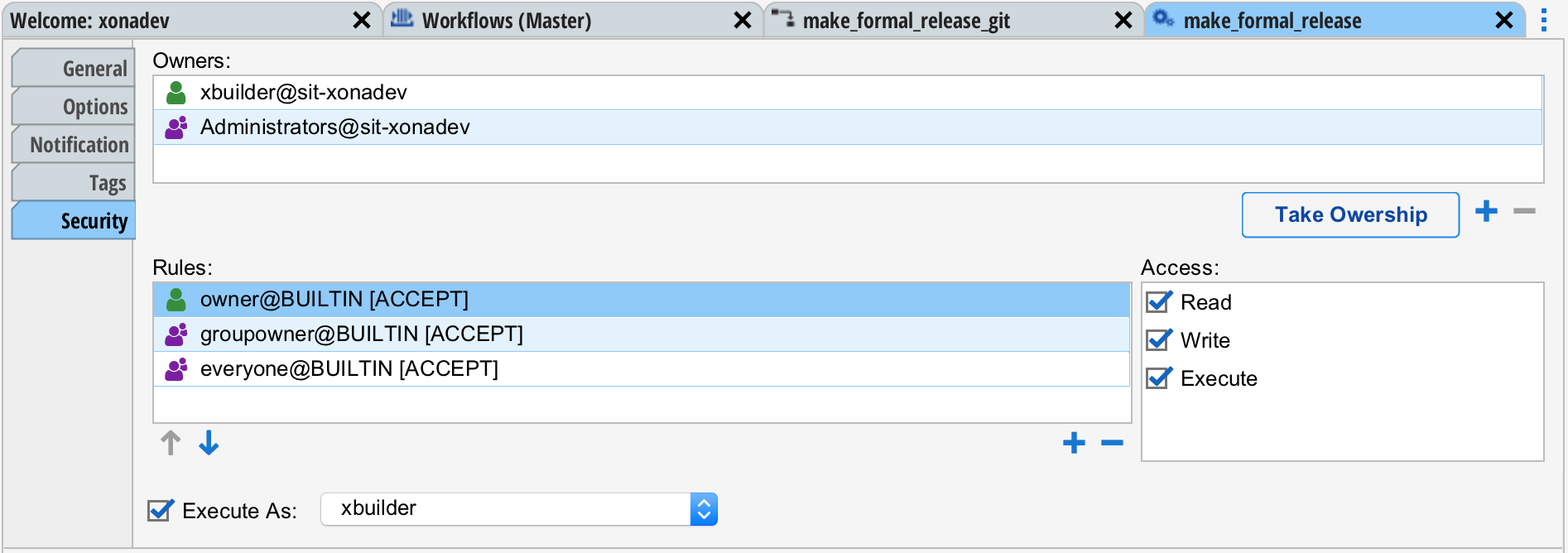
The security settings for the workflow are found in the "Security" tab in the Workflow Designer. The top section is exactly the same as the ACL and Security editor used on all the other objects with Situate. To learn how to edit an ACL, see ACLs and Security.
Verbs
The verbs secured by the ACL are as follows:
| Read | A user must have read access to be able to open and view the workflow. A user must also have read access to execute the workflow. |
|---|---|
| Write | A user must have write access to be able to edit the workflow. A user need not have write access to execute the workflow. |
| Execute | A user must have execute access to be able to run the workflow. |
Execute As
With no "Execute As" user set, the workflow will run as the user that executes it manually. However, if the workflow is to be automatically started, an "Execute As" user must be set.
The execute user is set by checking the "Execute As" box and selecting the user.
Setting the User at Runtime
You can determine the user at runtime via code by setting the "Execute As" user to <Javascript Expression> and entering a Javascript expression. At runtime, the expression must evaluate to a string whose value is a valid Situate user or service account.
When a user is determined at runtime via code, the approver of the workflow must have the "Users can approve workflows that use a variable for the user" policy. See Policies for more information.