
Appearance
Domain Security
The domain security editor allows you to edit the settings that control what users can and cannot do within Situate.
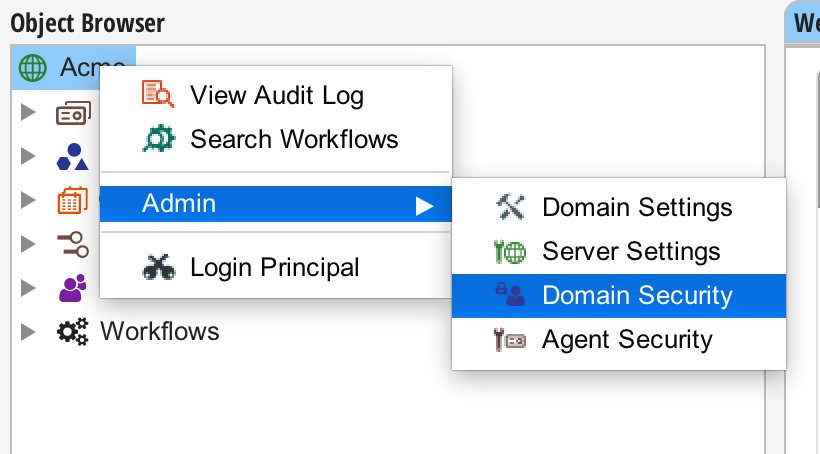
The domain security editor is accessed by right-clicking on the domain-level object in the object browser, selecting the "Admin" menu, and selecting "Domain Security".
WARNING
Note: Only members of the Administrators group can access the domain administration tools.
The Editor
The editor is composed of two sections: Authentication Services and Groups.
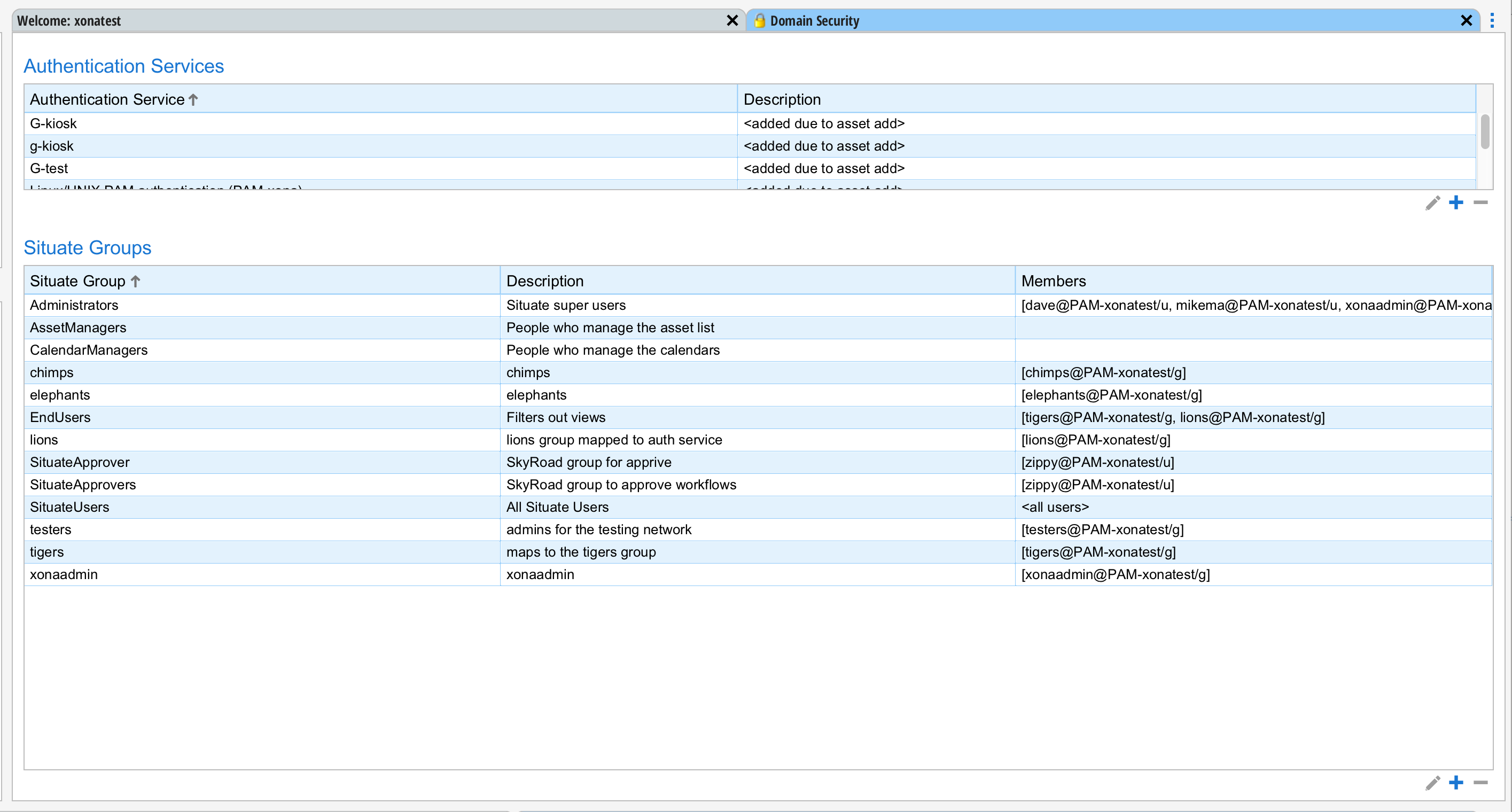
Authentication Services
Authentication services are systems that maintain user accounts, groups, passwords and other data required to authenticate and authorize a user. For the most part, Situate detects and configures authentication services as new assets are added or as endpoints are configured. However, sometimes authentication services need to be added or updated manually.
Naming Authentication Services
An authentication service name is made up of a prefix that indicates the type of authentication service and a name that uniquely identifies it. The following table describes the types of authentication services.
| Prefix | Type | Description | Example |
|---|---|---|---|
| AD- | Microsoft Active Directory | The Microsoft Active Directory service for both Windows and Linux computers using AD (such as sssd) for authentication. | "AD-acme.local" is the Active Directory domain "acme.local". |
| PAM- | Linux Pluggable Authentication Model | An authentication service native to Linux. If NIS is used, the name portion of the authentication service will be the NIS domain. | PAM-acme is the native authentication service on the Linux box with the domain name "acme". |
| E- | Situate Endpoint | An endpoint is an entity Situate integrates with that does not run an agent. For information on endpoints, see Endpoints. A relational database is an example of an endpoint. Relational databases have user accounts and so Situate would need to have an account to be able to login to the database. In this case, the authentication service represents the accounts in the database. | E-el38m39e-105d-11e9-9777-14109fe12bfb is an endpoint with the GUID "el38m39e-105d-11e9-9777-14109fe12bfb". |
| sit-### Other Access Control Policies |
These settings are found in the group dialog under the description.
Set new user's default group to this group. (NUG) When a new user logs in for the first time, Situate creates a shadow account in Situate for that user. This account is used to store preferences, settings and security information for that user. Each of these users has a default Situate group assigned. As the user creates objects (such as workflows), their default group is used in the construction of an initial ACL for that object. When this policy is set, as new users who are members of this group login, their default group is set to this group. If no such group exists, their default group will be SituateUsers.
Set new workflow's group owner to this group. (WAG) When a user who is a member of this group creates a workflow, the initial ACL will contain this group as a group owner, assuring that other members of this group have read, write and execute access. Let's say you have a Q/A team (for example) that all share a set of workflows and everyone on that team should be able to run, edit, etc. the workflows of their teammates. By setting this setting in the QA group, you assure that every new workflow created by a Q/A team member will have read, write and execute access for the team. This setting overrides the user's default group during ACL creation for the purpose of creating workflows.
Set new workflow's 'execute as' user to: (WAU) Workflows may run as the user that kicks off the workflow or may be set to run as a specific user. Let's say you have a Q/A team and they run most of their workflows as a service account "tester". In this case, the Q/A Situate group can have this box checked and the user set to "tester". As members of the Q/A team create workflows, the "tester" user will be set as the "run as" user on these new workflows. Of course, the workflow designer may set this setting themselves but it prevents the workflow designer from accidently forgetting to make this change.
Identities
The identities tab contains a list of external accounts available to group members to authenticate with entities outside the Situate domain. When a Situate service account interacts with external entities, Situate selects the most relevant identity to authenticate with the entity to perform the action.
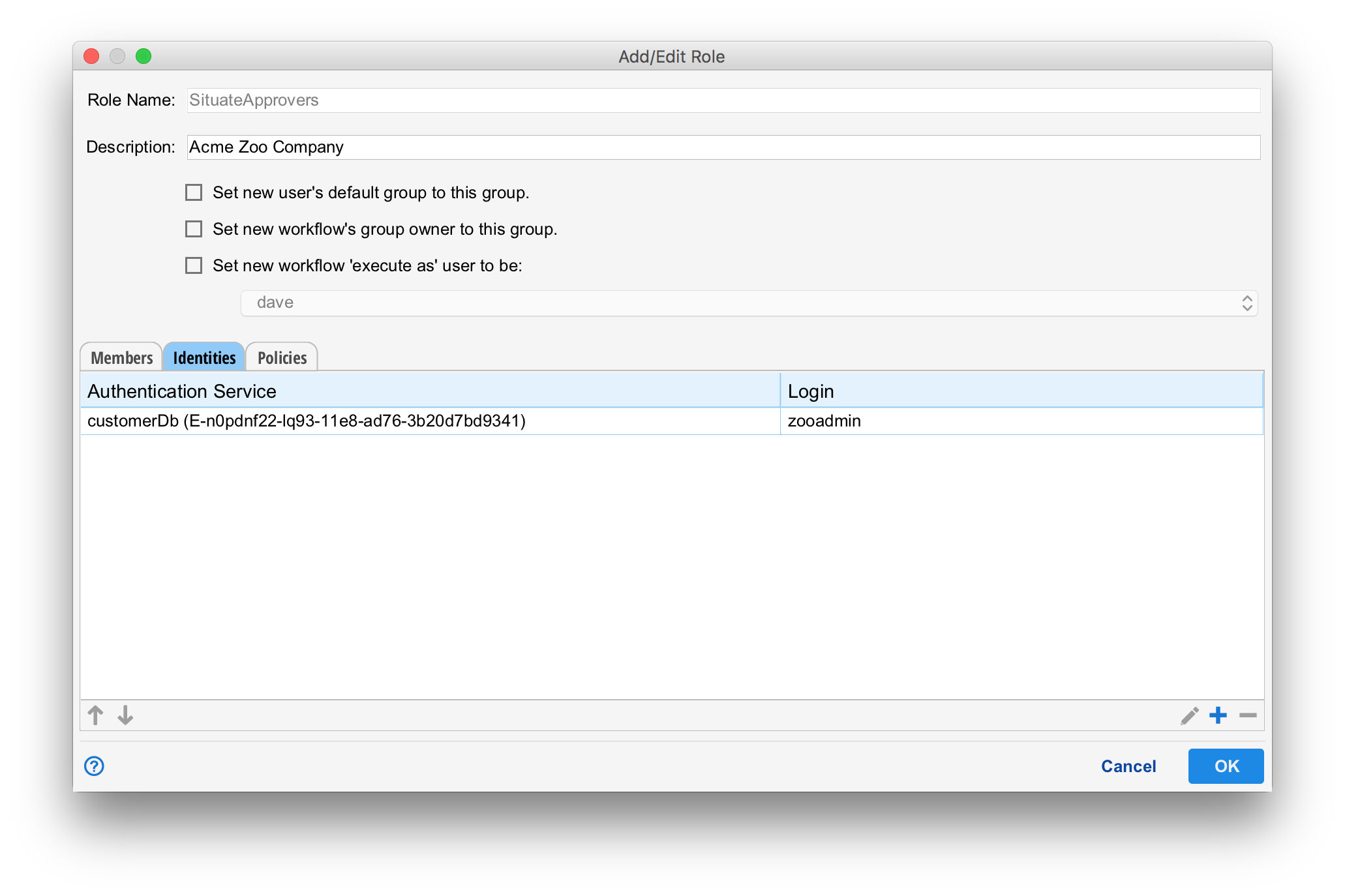
In this example, all members of "SituateApprovers" have been granted the "zooadmin" login to a database endpoint named "customerDb". When a user or workflow with "SituateApprover" membership attempts to interact with "customerDb", Situate will automatically log in with the "zooadmin" login and password contained within the identity.
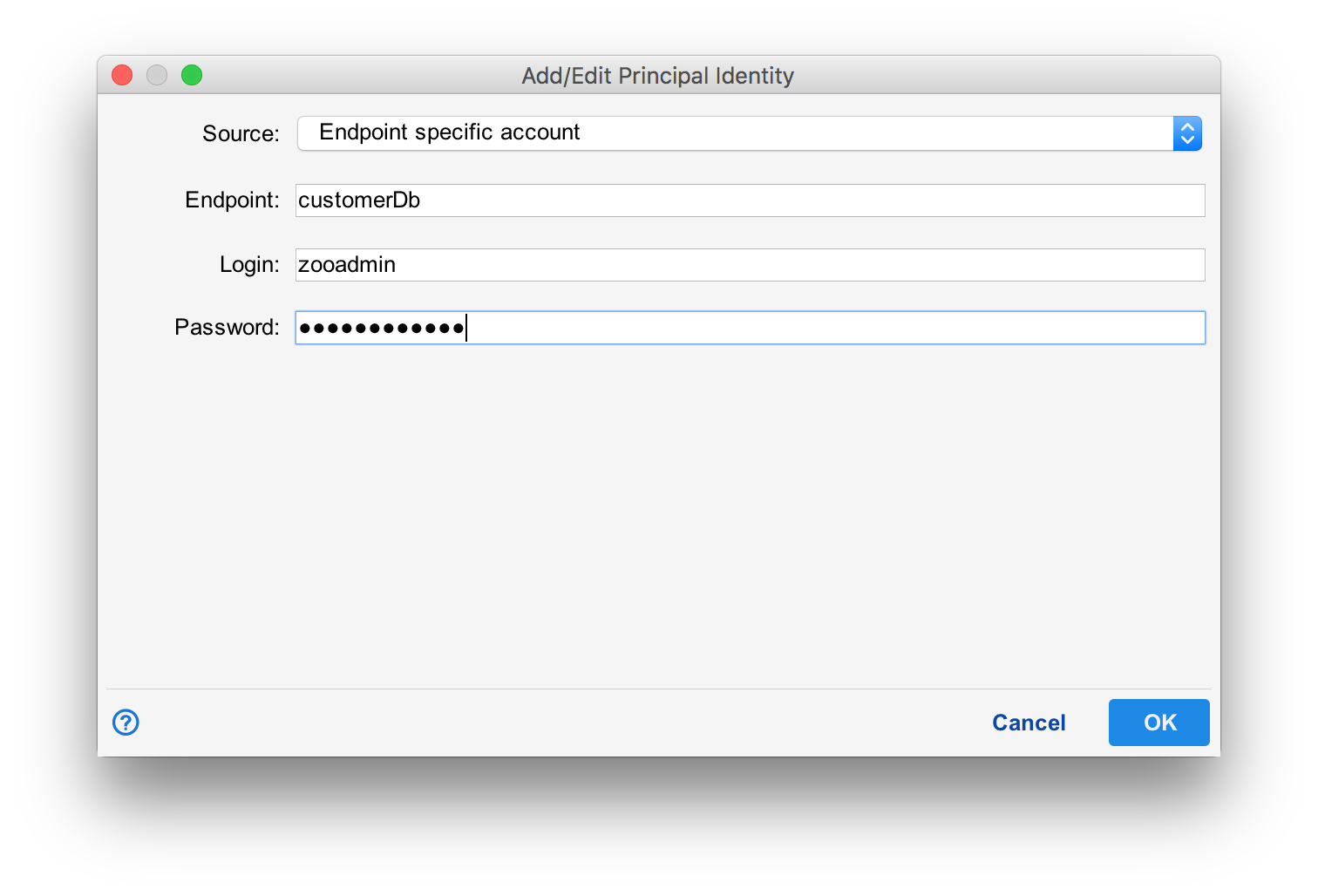
To edit, add or delete identities, select the "pencil", "+" or "-" buttons at the bottom of the identities tab. When adding an identity, it requires a source, endpoint, login and password. The source dictates the type of identity to configure. The endpoint references a Situate endpoint for location and connection details, and the login and password information allow Situate to authenticate with the external service.
For more information on identities, see Principal Identities.
In the Service Accounts section of Situate, users may establish a set of identities themselves. Identities assigned here are done by Administrators. The advantage of this approach is that the end users of these credentials never actually see the credentials. For example, let's say you have a sales team that needs access to a CRM database. Best practices dictate routine password changes on the database. Instead of going to each member of the sales team every 30 days and giving them the new password, an administrator can simply change the password at the group level for all users. This way, the members of the sales team never directly know the password and the administrator does not have to deal with several sales people each month who are locked out because they missed the memo.
Built-in Groups
There are several built-in groups in Situate that cannot be removed. They are:
| Group | Description |
|---|---|
| Administrators | Administrators can change almost anything, though certain workflow approval operations are not granted to administrators. This group is analogous to 'domain admin' on Windows or 'root' on Linux. Most importantly, Administrators can edit and update the security settings within Situate. |
| AssetManagers | AssetManagers can add, edit or remove assets. Administrators can also perform these functions. A separate group exists because often teams who deploy servers require this capability, but you do not want to give them the full power of Administrators. |
| CalendarManagers | CalendarManagers can add, edit or remove calendars. |
| SituateUsers | Every user is a member of SituateUsers. This a catch-all group for users who login but belong to no other Situate groups. |