
Appearance
Managing Assets
For Situate to be able to interact with an asset, the asset must be known to the Situate server as an asset object.
WARNING
Note: Only members of the AssetAdmins or Administrators group or can add assets.
Creating an Asset
The first step to adding an asset is installing the Situate agent. See Agent Installation. Once installed, you need to add the asset to the Situate domain.
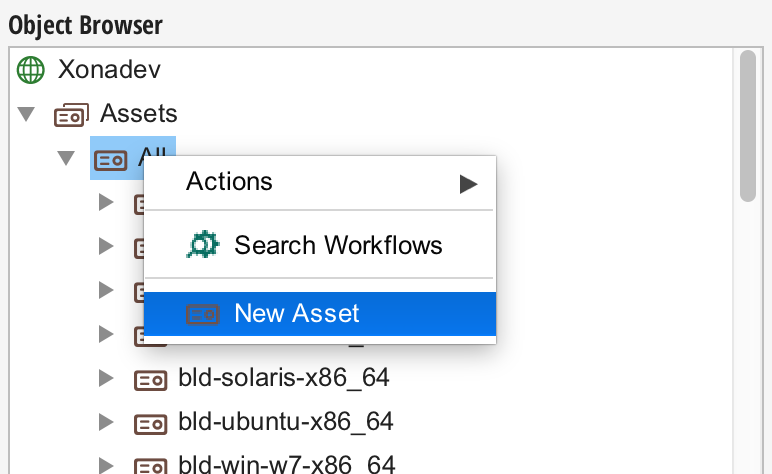
An asset is added by opening the context menu in the "All" asset folder and selecting "New Asset".
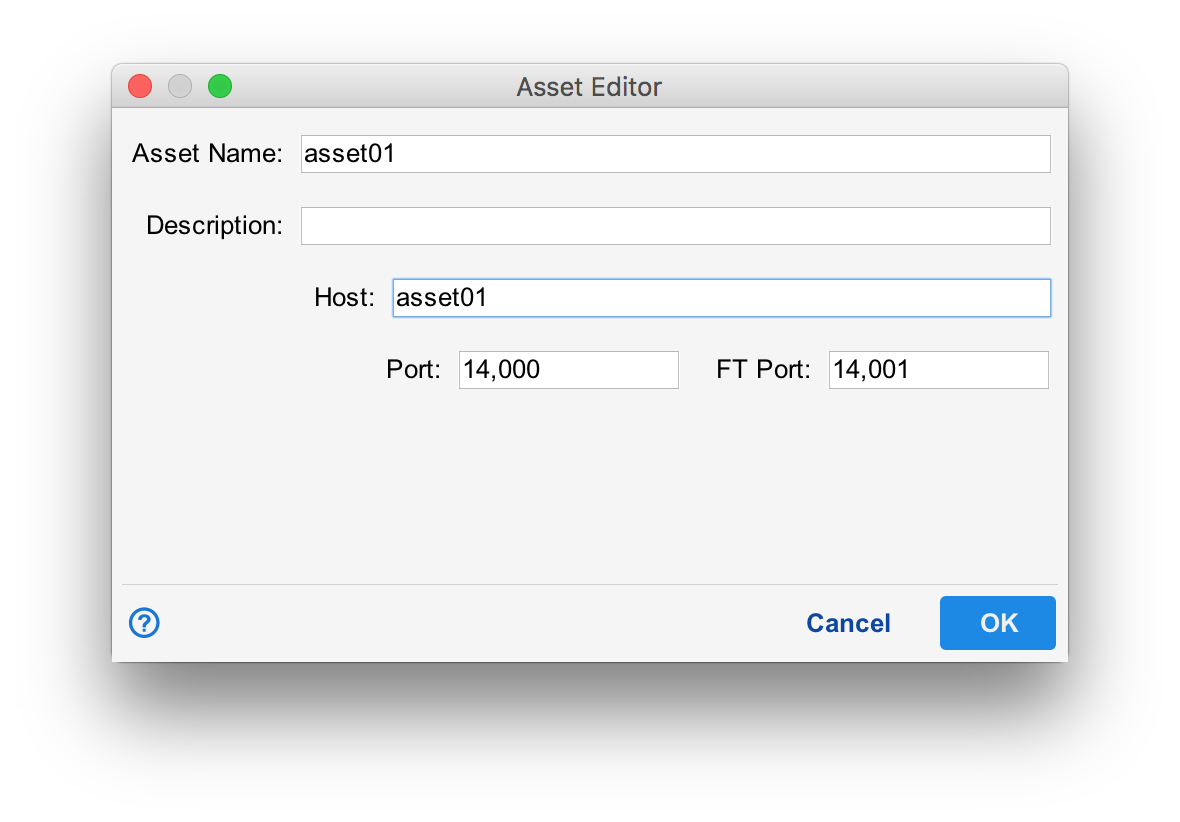
The asset editor requires an asset name and host name for the asset. Your may also specify a non-standard set of ports but that is not recommended. Adding a description is also recommended.
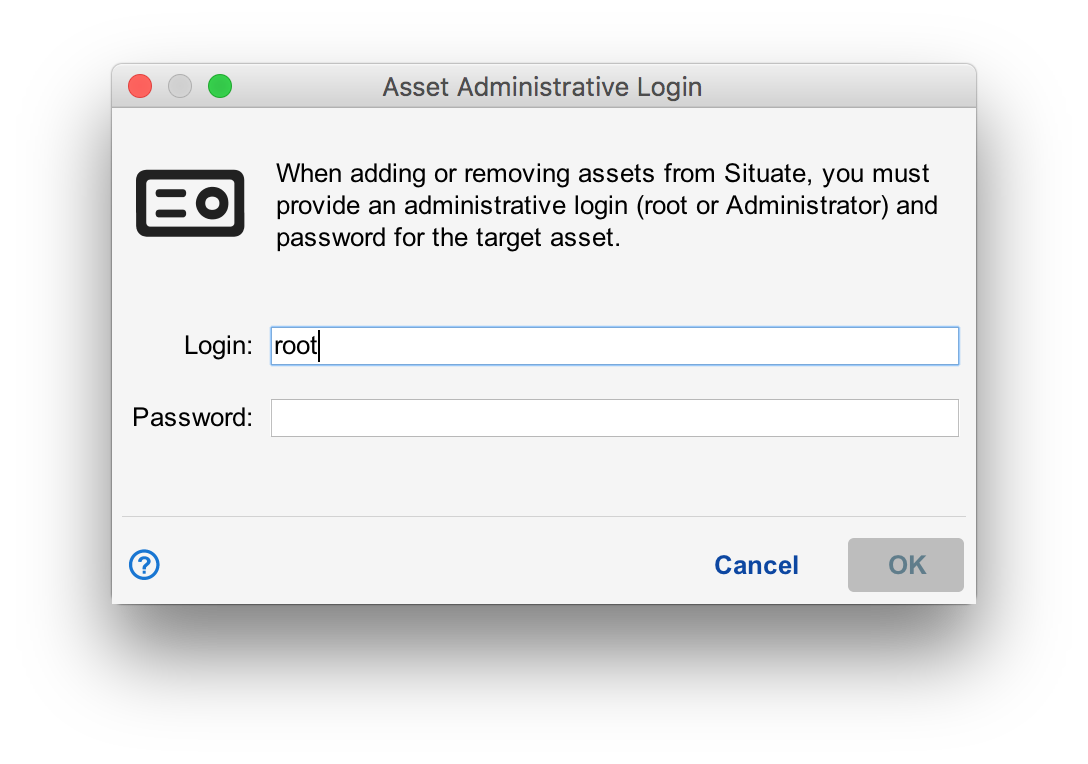
Depending on how the agent on the new asset was installed, you may be prompted for a login and password. For Linux, you will need to enter root's login and password. For Windows, you will need to enter a login and password that has domain admin rights.
By entering these credentials, you are proving to the target computer that you have the right to control it and want it added to the Situate domain. This step protects agents from malicious Situate servers.
Adding an Agent Without a Login and Password
Often in large environments that use a provisioning tool such as puppet or chef, one wants to install agents and be able to add them without sharing the root password with a Situate administrator. This can be done by distributing the Situate server's certificate to the computer you want to add as part of the install process. Since one must have root or domain admin privileges to install the certificate on the target computer, permission to control the computer is demonstrated, which is all the password exchange is testing.
To install the server's cert, go to the Situate server. In /opt/situate/security, you will find a file of the form <Your Domain>-cert.pem. Place this file in /opt/situate/security/servers and rename it to just <Your Domain>.pem (taking off the "-cert"). On windows computers, the file will go into C:\Program Files\Situate\SituateAgent\security\servers.
Aliases
Multiple assets be added that refer to the same physical computer. This often done when one wants to have an asset that has a functional name such as "production-database". In the event this asset needs to be redirected do a backup machine, for example, you can simply edit the asset and change the hostname.