
Appearance
Email
The email task sends email.
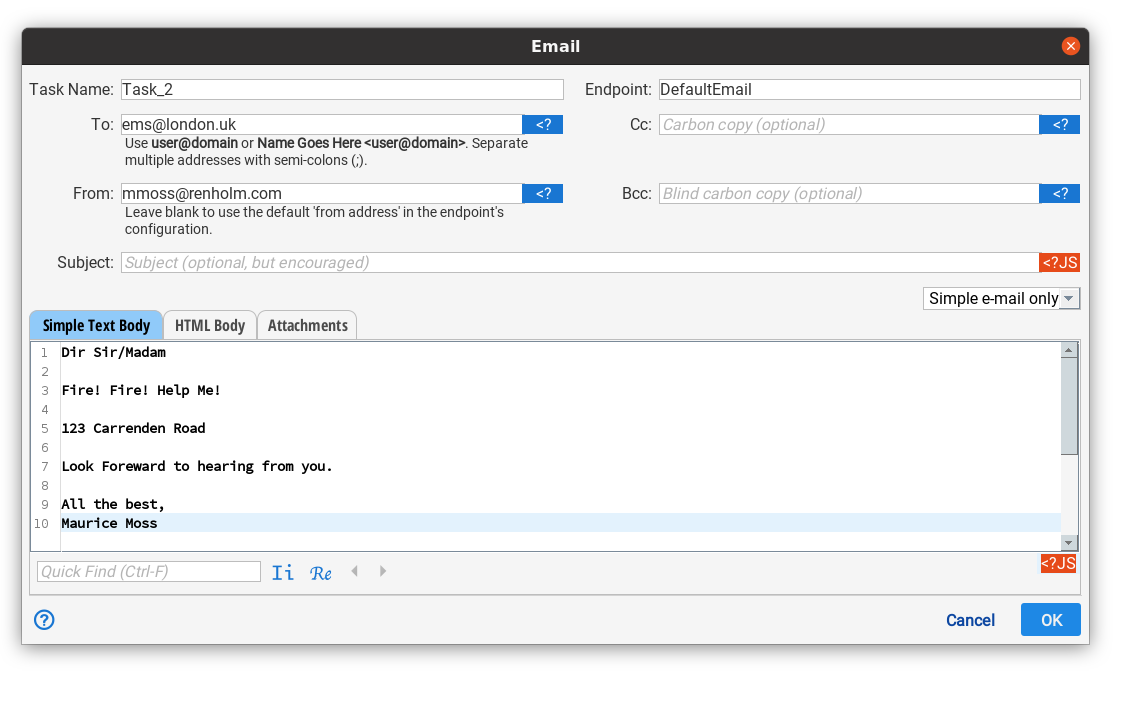
Endpoint
The endpoint field selects the email endpoint to be accessed. An email endpoint must be configured before it can be used. See Endpoints for more information.
To
The recepient. Semicolons can be used to separate multiple email entries. Semicolons are used because sometimes commas are used in side email addresses. expression expansion is supported by this field.
Cc
The carbon copy recipient(s). Semicolons can be used to separate multiple email entries. expression expansion is supported by this field.
Bcc
The blind carbon copy recepient(s). Semicolons can be used to separate multiple email entries. expression expansion is supported by this field.
From
A single email address that will become the sender. If this field is left blank, the default email address configured in the endpoint will be used. expression expansion is supported by this field.
From
The email subject. Template expansion is supported in this field. expression expansion is supported by this field.
Body
The drop down on the right of the body allows you to select between a simple text-based email and a rich HTML-based email. When HTML email is used you can put both a text-based and a rich body. Both are sent in case the recipient's email client does not support HTML.
Attachments
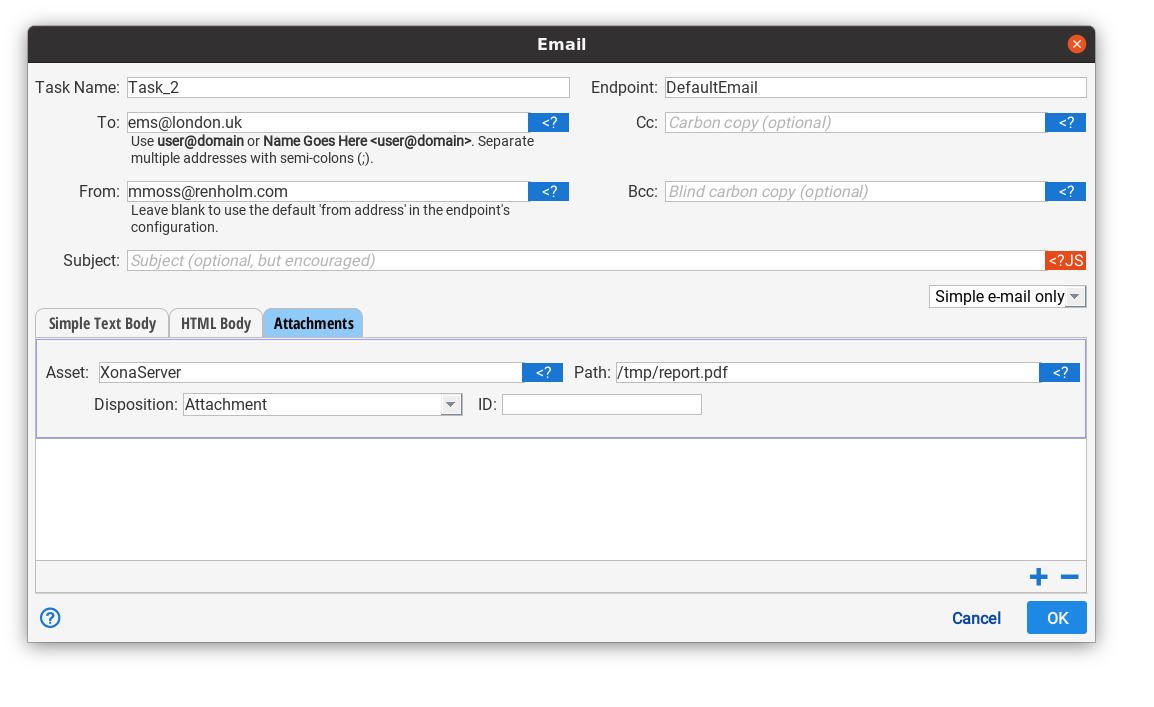
Attachments may be sent with your email. To do this, go to the attachment tab and use the "+" to add one or more attachments. Each attachment must have an asset and path. This is where Situate will look for the attachment.
You must also specify the disposition. If disposition is set to "attachment" is will be attached as an attachment (such as the way a report is attached). If disposition is set to "related", it means this attachment is an image or other item that is to be displayed inline with the html body. When sending a related item, you must set an ID. You can then reference the item using "CID:". For example, <img src="cid:picture"/> references a related attachment with ID = "picture".