
Appearance
Asset Groups
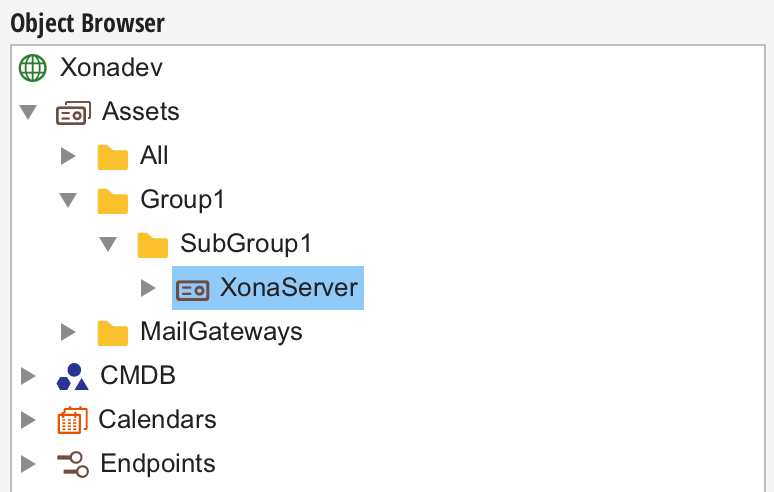
Asset groups provide a way to organize related assets. Asset groups work a differently than a file system in that Every asset can be found in the "All" folder. Assets can then exist in multiple groups as needed to provide a way to relate similar assets. Sub-groups are also possible. When an asset is a member of a sub group, it's also considered a member of the sub-group's parent folder and so on.
Creating, Editing and Deleting Groups
Groups are created in the object browser's context menu, and become sub-groups of the group on which they are created. Top-level groups may only be created by member of the Administrators group. Further sub-group creation is managed by the ACL on the parent group. Anyone with "Create" access to a group may create a sub-group of that group.
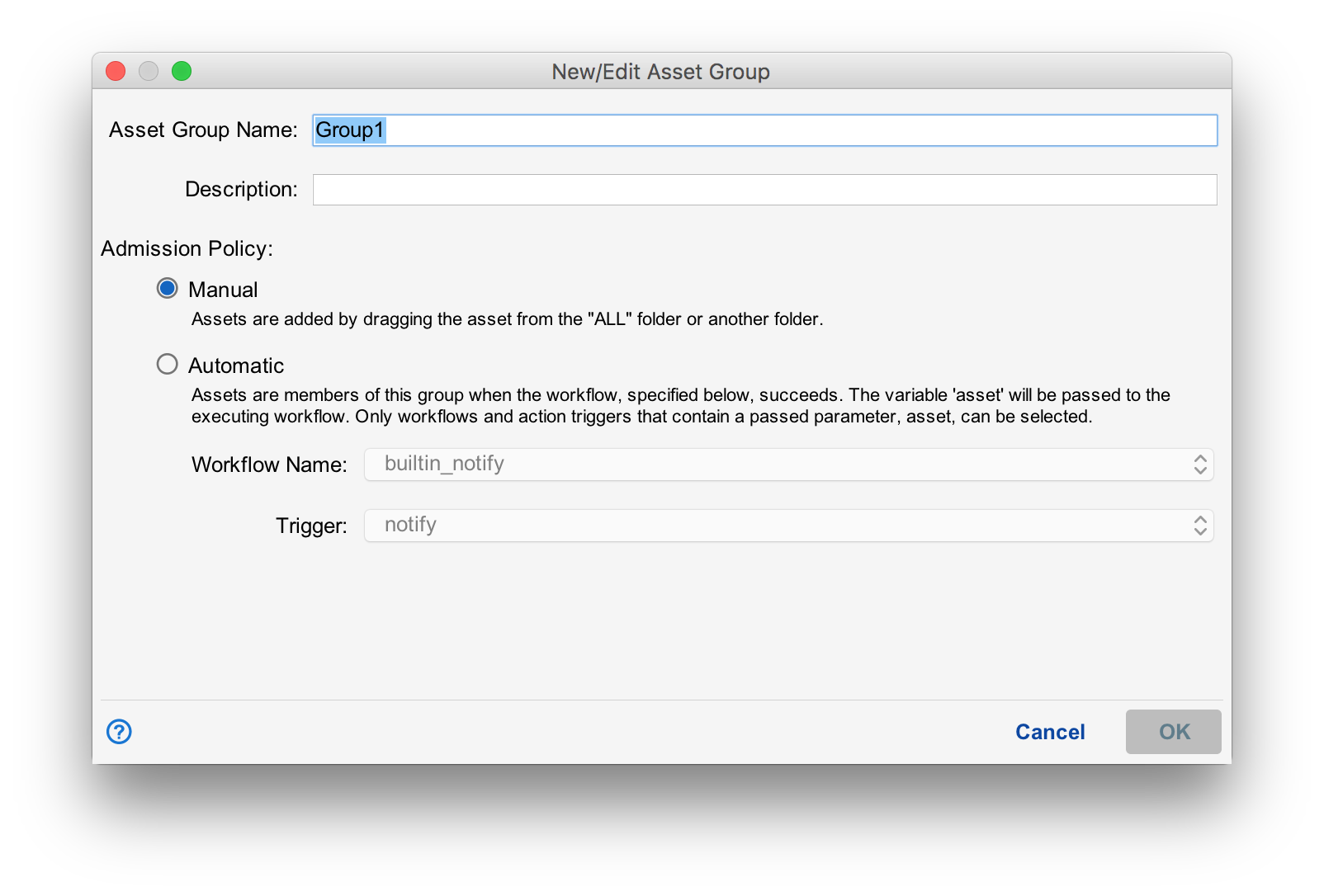
Groups and their members my be edited by selecting "Edit" in the context menu of the group or asset reference to be modified. Editing a group requires the user to possess "Update" access to the group. Groups are deleted by selecting "Delete" from the context menu on the group you wish to delete.
Group Admission
Each group has an admission policy that determines how assets become part of the group.
Manual Admission
When the "Manual" admission policy is selected, assets are added to groups by double clicking the "All" group to open the asset view on the right. Then, drag the asset you want to add into the target group.
Assets can be removed from groups by selecting "Delete" from the context menu. When an asset is deleted from a group it is only removed from the group. To remove the asset from Situate, you delete the asset from the "All" group.
Automatic Admission
When the "Automatic" admission policy is selected, Situate will run the specified workflow passing in the variable 'asset' to the specified action trigger. If the workflow succeeds, the asset belongs to the group. If not, the asset does not belong to the group. Situate will execute the workflow each time a significant change occurs on the server such as it is rebooted or Situate is restarted.